The Gravity of the Slow Push-In: Prompting Deliberate, Tension-Building Camera Movement in AI Video
Most AI video generators mistake a camera push-in for a cheap digital zoom. Discover the exact vocabulary, structural frameworks, and motion slider settings needed to force AI models to simulate physical camera weight, maintain correct 3D parallax, and keep subjects stable during a slow dolly-in.
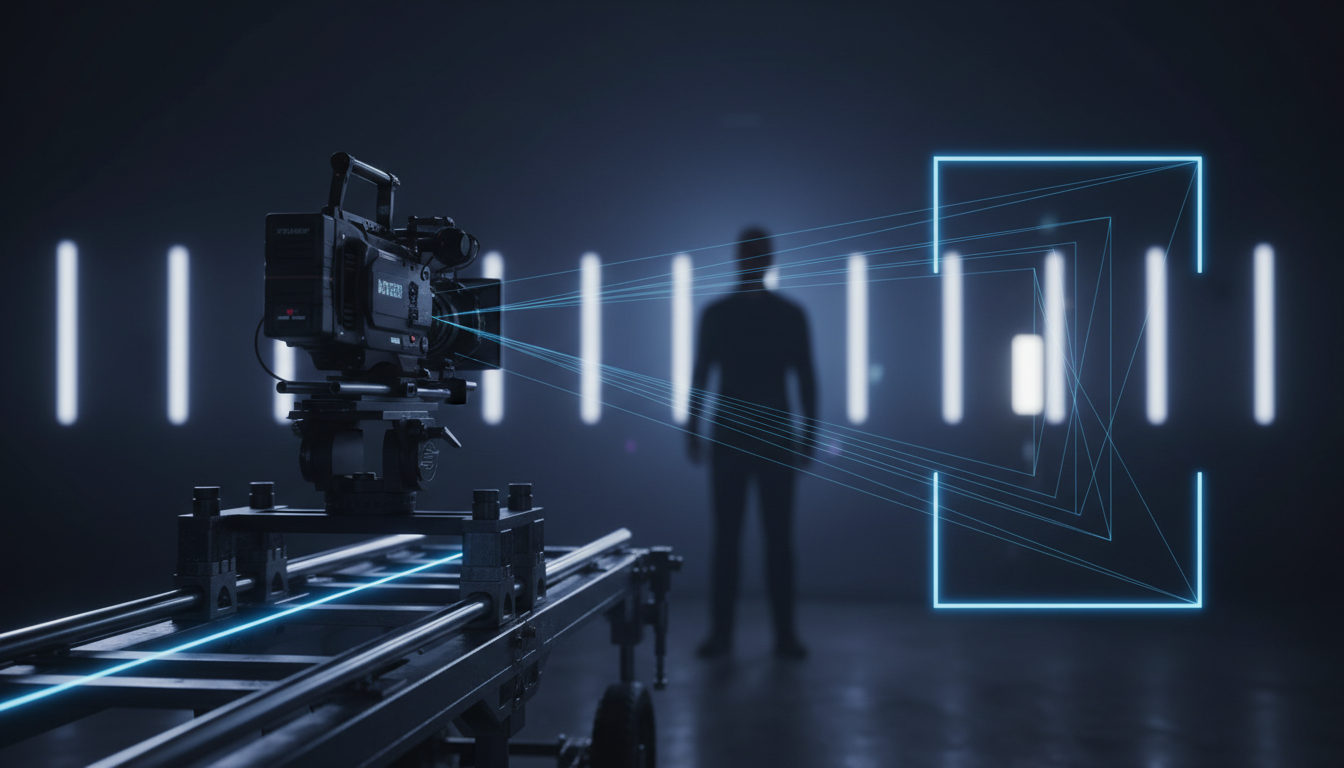
In cinematic storytelling, the slow camera push-in is a tool of intense psychological gravity. Directors like David Fincher and Stanley Kubrick use this deliberate, unhurried forward movement to signal a character's internal shift, tighten the emotional screws of a scene, or draw the audience inexorably into a critical narrative detail. When executed well, the camera feels heavy, moving along physical tracks with a tangible sense of friction and presence.
However, replicating this physical weight in generative AI video tools is notoriously difficult. Most AI models default to a flat, digital zoom that lacks physical depth, or they accelerate the camera forward as if staging a high-speed action sequence. At Montagea, our production testing has revealed that achieving a true, tension-building dolly-in requires moving away from simple directional commands and instead prompting for physical friction, spatial depth, and environmental inertia.
The Cinematic Difference: Push-In vs. Digital Zoom in AI Video
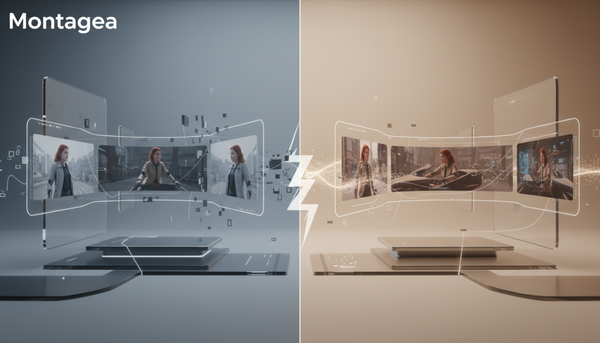
To master this workflow, filmmakers must first understand why AI models struggle with forward movement. A true physical push-in (or dolly-in) alters the camera's physical position in three-dimensional space. As the lens moves forward, it creates dynamic parallax: foreground elements shift faster and slide out of frame, while the background slowly expands, revealing hidden details. This spatial shift provides the viewer's brain with immediate, subconscious cues about the room's physical dimensions.
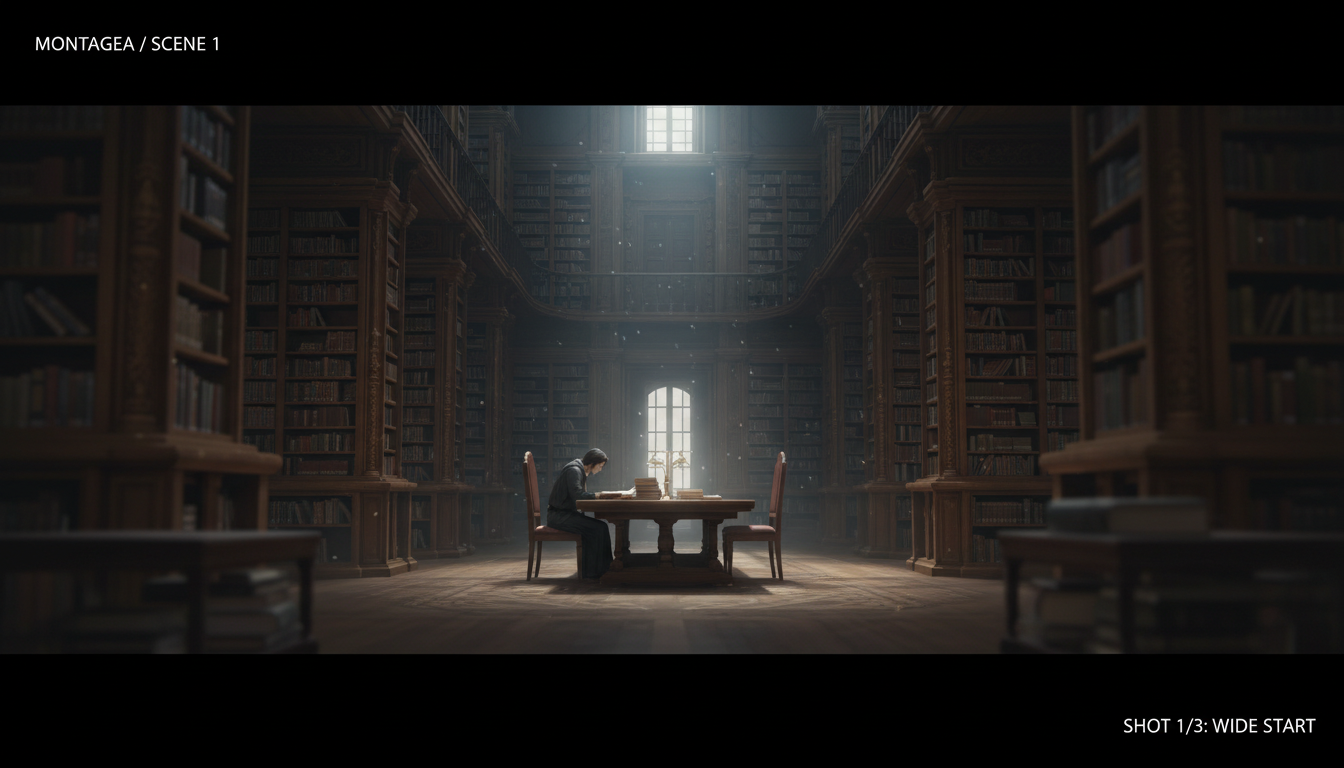
In contrast, a digital zoom merely crops and scales the existing frame. It flattens the image, compresses the spatial relationship between foreground and background, and sacrifices resolution. Because scaling pixels is computationally simpler than rendering complex, changing 3D perspectives, AI models naturally default to zooming when given generic commands. To build genuine tension, you must force the AI to calculate true spatial movement. For instance, creators can contrast the simple push-in with the complex, disorienting mechanics of the dolly zoom to see how depth-of-field and spatial planes interact when physical camera travel is correctly simulated.
The Vocabulary of Friction: Prompting Slow, Heavy Camera Physics
The primary reason AI video generators produce frantic, uncontrolled forward camera moves is the lack of physical constraints in their training data. If you prompt a model with "camera pushes in fast" or "zoom to face," the engine interprets this as a high-velocity action shot. To slow the camera down, you must introduce "linguistic friction"—descriptive words that imply weight, resistance, and careful execution.
Instead of generic directional phrases, build your prompts around high-friction terms. Phrases like "slow, unhurried dolly-in," "creeping camera," "gradual cinematic push," and "heavy camera movement with physical inertia" signal to the AI that the transition must occur across the entire duration of the clip. Additionally, you can compare the tension-building push-in to the narrative release of a cinematic pull-back reveal; both movements require a meticulous sense of timing and physical drag to feel earned.
The Role of Foreground Occlusion
One of the most effective ways to force an AI model to render physical camera travel rather than a digital zoom is to introduce foreground occlusion. By placing physical objects—such as a hanging light fixture, a door frame, or a leafy branch—very close to the camera lens at the start of the shot, you give the AI a spatial benchmark. As the camera moves forward, it must render the physical act of passing around or under these objects, making a flat digital zoom mathematically impossible for the generator to resolve.
The Montagea Push-In Framework: Structuring Prompts for Spatial Control
Through extensive testing across leading AI engines like Kling, Runway Gen-3, and Luma Dream Machine, the editorial team at Montagea has structured a highly reliable four-part prompting framework. This syntax prevents the model from ignoring the subject's details or executing the camera movement with jarring speed.
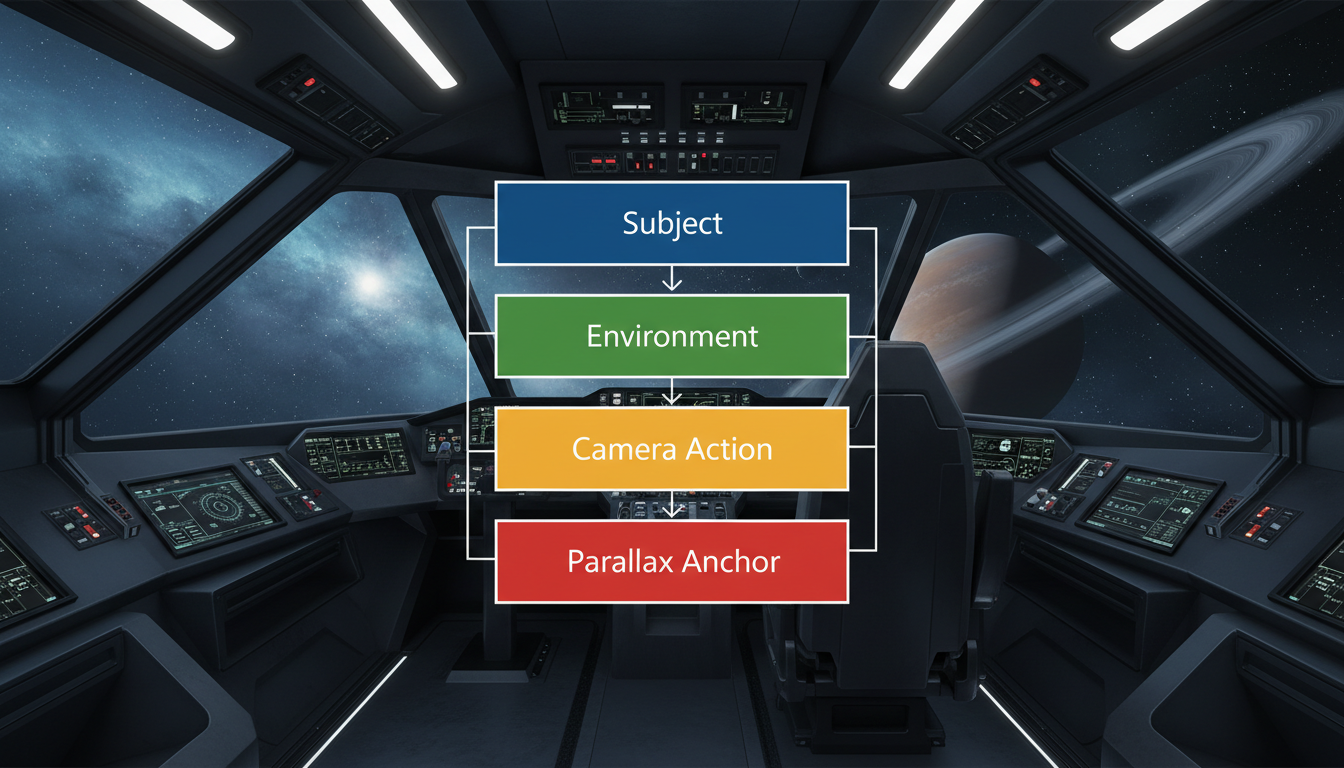
The framework is structured as: [Subject] + [Environment] + [Camera Action & Speed] + [Parallax Anchor].
Our internal testing shows that placing the camera motion and physical anchors at the very end of the prompt yields the highest rate of success. If you put the camera movement first, the model often prioritizes the motion so heavily that it neglects the fine details of the subject or environment.
| Cinematic Scenario | What to Avoid (Weak Prompt) | What to Write (Montagea Framework) |
|---|---|---|
| Tense Interrogation Room | Zoom in fast on the man's face as he gets nervous. | A sweating man sits under a harsh overhead bulb in an interrogation room. Heavy, slow cinematic dolly-in. The camera creeps forward with physical inertia, passing a blurry foreground desk lamp to reveal deep spatial parallax. |
| Sci-Fi Control Room Discovery | Push in on the computer screen flashing red. | An empty sci-fi console flashing red emergency alerts. An unhurried, weighted camera push-in. Dust motes drift slowly in the volumetric red light beams, establishing physical depth and slow camera travel. |
| Solitary Figure in Nature | Camera moves forward to the woman standing on the cliff. | A woman in a heavy wool coat stands at the edge of a misty cliffside. A gradual, creeping camera push-in. The camera slowly glides past foreground pine needles, creating a strong sense of spatial depth as the misty background expands. |
Mitigating Artifacts: Keeping Faces and Environments Stable
The most frustrating artifact of a slow AI push-in occurs as the camera nears its destination. In a wide shot, a character's face might only occupy 5% of the frame, requiring very few pixels of detail. But as the camera pushes in to a tight close-up, the AI is suddenly forced to generate micro-details—skin pores, eye reflections, fine hairs, and complex shadows—that did not exist in the initial frames.
This sudden demand for high-frequency detail often causes the subject's face to morph, their clothing to shift styles, or their features to drift. To prevent this, filmmakers should reference the broader workflow for maintaining character consistency across different framing scales.
To mitigate these issues, use negative prompts to restrict "morphing, flickering, sudden wardrobe changes, and face shifting." If your platform supports seed locking or reference images, feed a high-resolution close-up of the subject as an image prompt or character reference. This tells the generator exactly what details to reveal as the camera approaches, preventing the AI from "inventing" new facial features on the fly.
Directing the AI Director: Combining Text Prompts with Motion Sliders
While text prompts lay the foundation for physical weight, relying on text alone can still result in unpredictable camera speeds. To achieve true studio-grade precision, you must combine your descriptive text prompts with platform-specific motion control tools.
When utilizing camera path controls or motion sliders (such as those in Runway or Luma), the secret to a slow, heavy dolly-in is restraint. Set the motion scale or camera speed sliders to very low values—typically between 1 and 3 on a 10-point scale. Pair this low numerical value with a dedicated forward Z-axis movement. By combining a low motion value with a text prompt containing friction vocabulary, you create a dual constraint: the slider limits the maximum velocity of the pixels, while the text prompt defines the cinematic quality of the movement.
How do I prevent my AI video generator from zooming instead of moving the camera?
To prevent a flat digital zoom, avoid generic words like "zoom" or "move closer." Instead, use words that imply physical movement through space, such as "dolly-in," "creeping camera," or "slow push-in." Crucially, include foreground elements (like door frames or hanging lights) in your prompt. This forces the AI to render physical parallax as the camera passes by these objects.
What are the best keywords for a slow, cinematic camera push-in?
The most effective keywords introduce physical weight and friction. Use phrases like "slow, unhurried dolly-in," "heavy camera movement with physical inertia," "gradual cinematic push," "creeping camera," and "unhurried tracking shot." Avoid action-oriented terms that prompt rapid, floating, or unstable camera movements.
Why does my character's face morph when the AI camera gets closer?
As the camera pushes in, the AI must generate fine facial details (like eyes, skin texture, and teeth) that weren't visible in the wider shot. Because the model is inventing these details frame-by-frame, the features often drift or morph. You can mitigate this by using seed consistency, negative prompts against morphing, or uploading a high-resolution close-up of the character as a reference image.
Can I combine a slow camera push-in with motion control sliders?
Yes, and doing so yields the best results. Set your platform's camera motion sliders (like Runway's or Luma's) to a very low speed setting (typically 1 to 3 out of 10) and configure the movement along the Z-axis (forward). Combine this mechanical setting with descriptive "friction vocabulary" in your text prompt to lock in a slow, heavy, and realistic movement.