The Isolated Motion Protocol: How to Animate Only the Background in AI Video
In traditional filmmaking, a locked-off subject against a dynamic background is a powerful narrative tool. This guide introduces a production-ready protocol to override the default behavior of AI video engines, ensuring perfect subject consistency while injecting motion into the background.
In traditional filmmaking, locking off a camera to capture a still subject against a chaotic, fast-moving background is a foundational storytelling technique. Whether it is a protagonist standing motionless in a bustling subway station or a portrait set against a hyperlapse of passing clouds, isolating motion directs the viewer’s eye and establishes a deep psychological contrast. This visual tension keeps the audience anchored to the character’s internal state while the world moves dynamically around them.
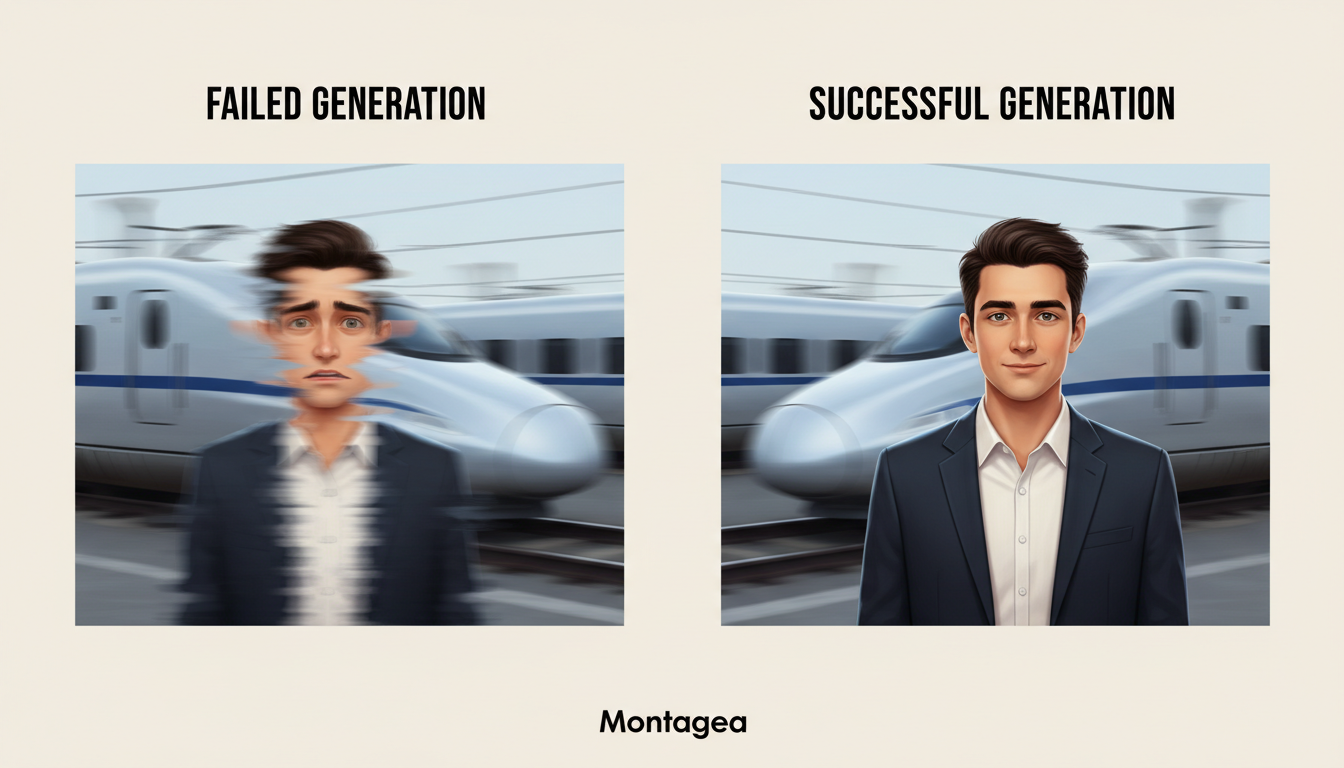
In the realm of AI filmmaking, however, achieving this classic cinemagraph effect is notoriously difficult. Because neural networks generate video by predicting changes across the entire latent space simultaneously, they naturally want to animate every pixel, causing static characters to melt, drift, or lose their structural likeness. To overcome this, professional creators must implement a deliberate set of rules and workflows to separate foreground stillness from background kinetic energy.
The Kinetic Dilemma: Why AI Video Engines Struggle with Background-Only Motion
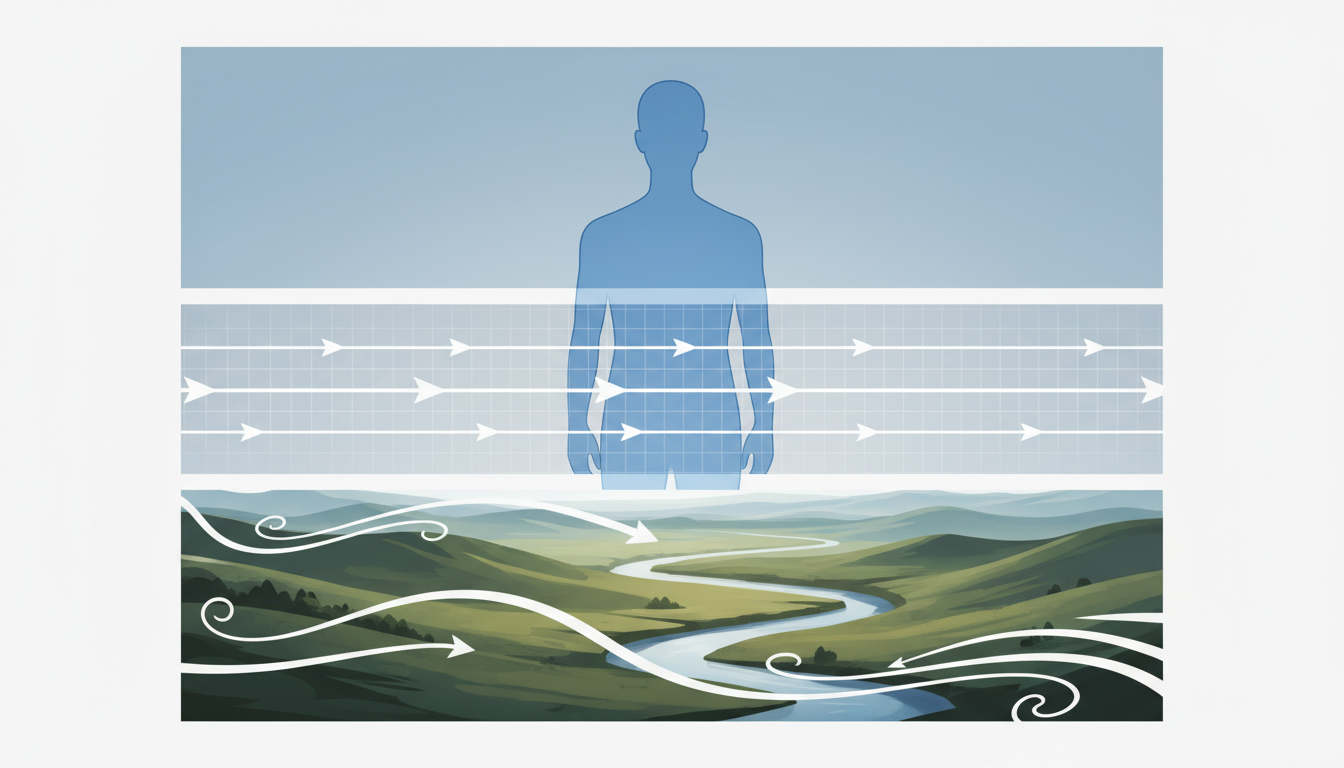
AI video engines operate on global latent noise, which naturally distributes motion vectors across the entire frame rather than respecting object boundaries. When a model like Runway Gen-3, Luma Dream Machine, or Kling AI receives a prompt involving motion, its underlying diffusion process attempts to find the path of least resistance to satisfy that motion. Without strict boundaries, the kinetic energy intended for the background spills into the foreground.
This spillover leads to a phenomenon known as "likeness drift." As the background shifts, the pixels representing your character’s face, clothing, or silhouette begin to warp and morph to accommodate the surrounding motion vectors. A passing train in the background might pull the character’s hair along with it, or a panning camera might warp the geometry of a static foreground desk.
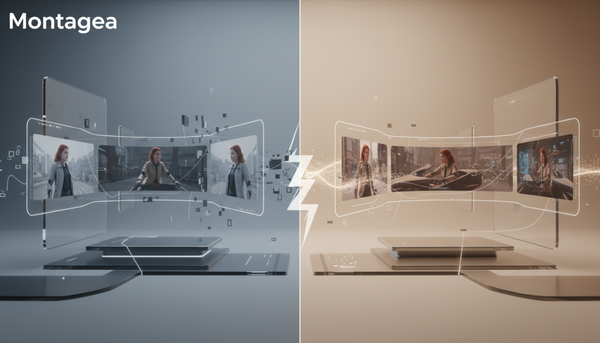
At Montagea, we advocate for treating AI video generation with the same control as a physical set, where lighting, camera movement, and subject motion are isolated and deliberate. Rather than letting the engine make global, automated assumptions, creators must partition the frame. By understanding how the latent space distributes motion, you can employ specific masking, prompting, and compositing strategies to enforce absolute subject consistency.
The Three Core Workflows for Isolating Background Motion
Achieving a perfect isolated-motion shot requires moving away from single-prompt generation. Depending on the complexity of your scene, you will need to employ one of three primary workflows. These methods range from native, platform-specific controls to advanced post-production compositing.
Selecting the Right Workflow for Your Shot
Before diving into the steps, use this quick-reference guide to determine which protocol fits your current shot requirements:
| Workflow Method | Best For | Precision Level | Software Required |
|---|---|---|---|
| 1. Native Motion Brushes | Quick generations, simple silhouettes, organic background movement. | Moderate | Runway Gen-2/Gen-3, Kling AI, Pika Labs |
| 2. Semantic Prompting | Stylized cinemagraphs, atmospheric changes, text-only workflows. | Low to Moderate | Any text-to-video engine (Luma, Kling, Runway) |
| 3. Alpha Matte Compositing | Complex character details, commercial work, absolute spatial precision. | High (Production-grade) | AI Video Generator + Premiere, After Effects, or DaVinci Resolve |
Method 1: Native Motion Brushes and Area Masking
The most direct way to isolate motion is to use the native regional control tools built into platforms like Runway and Kling. These tools allow you to paint directly onto your source image to designate which areas should remain still and which should move.
To execute this method successfully, follow this step-by-step pipeline:
- Prepare Your Source Image: Upload a high-resolution, clean reference image. To get the best results from motion brushes, you must start with a pristine source image; our guide on how to engineer reference images for temporal AI engines details how to establish these clean visual foundations. High contrast between the subject and the background is critical here.
- Mask the Subject: Use the brush tool to paint over your foreground subject. In Runway’s Motion Brush, you can select the subject and set its specific motion values (horizontal, vertical, and proximity) to exactly zero. This tells the engine to lock those pixels in place.
- Apply Directional Vectors to the Background: Use a separate brush to paint the background area. If you want a passing train, paint a horizontal vector across the tracks. If you want falling rain or leaves, paint a downward vertical vector. Keep the motion scale moderate (around 1 to 3) to prevent the background motion from tearing the boundaries of your static mask.
Method 2: Semantic Prompt Partitioning
When you do not have access to motion brushes, or when you are generating directly from text, you must rely on semantic prompt partitioning. This technique structures your prompt into distinct spatial zones, explicitly commanding the AI to keep the foreground frozen while animating the background.
To do this, use a structured prompt architecture that separates the static subject from the dynamic background using clear, non-overlapping language:
[Static Subject Description], shot on [Camera/Lens], background of [Dynamic Motion Description] in continuous motion, subject remains perfectly still, cinemagraph effect.For example, to generate a shot of a woman in a cafe with traffic moving outside, your prompt should look like this:
"A detailed portrait of a woman sitting in a dimly lit cafe, looking directly at the camera, shot on 35mm lens. In the background, out-of-focus neon city traffic is in continuous, fast motion. The woman in the foreground remains perfectly still, frozen in time, cinemagraph effect, no facial movement, static foreground."
Negative prompting is equally important here. In the negative prompt field, explicitly forbid subject movement by adding terms like: subject morphing, body drift, facial movement, foreground distortion, camera shake. Maintaining this delicate balance of static and dynamic elements across a sequence requires integrating these prompts into a broader storyboard-to-motion pipeline for temporal continuity, ensuring that your characters do not suddenly start moving in the next cut.
Method 3: The Alpha Matte and Clean Plate Composite
For professional video production, native brushes and prompting often fall short of the precision required for commercial delivery. Edge bleeding and slight facial drift can still occur. The ultimate solution is a hybrid workflow that combines AI generation with traditional post-production compositing.
This workflow bypasses the limitations of AI latent space by physically separating the subject and the background into two distinct layers in your editing software (After Effects, DaVinci Resolve, or Premiere Pro):
- Generate the Animated Background Plate: Generate your background video using your AI engine of choice. Since you will be replacing the foreground, you do not need to worry about character consistency in this pass. Focus purely on getting the perfect background motion (e.g., rushing water, crowds, or moving lights).
- Isolate Your Static Foreground Subject: Take your high-resolution static reference image of your character. Use a rotoscoping tool (such as After Effects’ Roto Brush 3.0 or Runway’s Green Screen tool) to create a clean alpha mask around the subject, completely cutting them out from their original background.
- Composite the Layers: Place your static, rotoscoped subject on Video Layer 2 (V2) and your animated AI background plate on Video Layer 1 (V1) in your timeline.
- Match the Environment: To make the composite look natural, apply a slight light wrap to the edges of your static subject so they inherit the color and brightness of the moving background. Add a matching depth-of-field blur to the background plate to ground the subject naturally in the space.
A Comparison of Major AI Video Engines for Background Control
Not all AI video generators handle selective motion with the same degree of control. When planning your production, choosing the right engine for your specific workflow can save hours of troubleshooting in post-production.
| AI Video Engine | Masking Precision | Motion Brush Control | Prompt Adherence (Stillness) | Edge-Bleeding Severity |
|---|---|---|---|---|
| Runway Gen-3 Alpha | Excellent | High (Multi-brush control) | High | Low (Very clean boundaries) |
| Kling AI | Very Good | Moderate (Path-based) | Moderate | Moderate |
| Luma Dream Machine | N/A (Text/Image only) | None | Moderate | High (Tends to animate everything) |
| Pika Labs | Moderate | Moderate | Low | High |
For projects requiring complex character close-ups where facial features must remain absolutely frozen, Runway Gen-3 paired with manual motion brush adjustments yields the most consistent results. For wide, atmospheric landscape shots where minor edge bleeding is less noticeable, Kling AI’s path-based motion controls offer excellent fluid movement for backgrounds like water or smoke.
Troubleshooting Common Artifacts: Edge Bleeding and Haloing
Even with careful masking and prompting, the boundaries between your static foreground and dynamic background can suffer from visual glitches. The two most common issues are edge bleeding (where the background pulls the outer pixels of your subject) and haloing (where a weird, blurry outline appears around your subject).
If your static foreground contains graphic elements or text, apply the vector anchor method to prevent distortion during the background generation phase. This ensures that hard edges, branding, or fine structural details do not get swept up in the surrounding motion vectors.
To fix haloing and edge artifacts in post-production, try these three steps:
- Choke and Feather the Matte: If you are using the composite method, slightly contract (choke) your subject’s alpha mask by 1 or 2 pixels, and apply a very soft feather (0.5 to 1.5 pixels) to smooth out the transition.
- Add a Light Wrap: Use a light wrap effect to blend the background’s lighting over the edges of your static subject. This mimics how real light spills over a subject’s shoulders, masking any minor edge imperfections.
- Apply Global Camera Shake: Once your composite is complete, nest/pre-compose your layers and apply a subtle, realistic camera shake across the entire nested sequence. This tiny amount of unified motion tricks the human eye into believing both layers were captured by the same physical camera lens in real time.
How do I stop my character's face from moving while the background animates in Runway?
To keep a character's face perfectly still in Runway, use the Motion Brush tool to paint a precise mask over the entire head and face. In the motion settings for that specific brush, set all directional values (horizontal, vertical, proximity) to zero. Additionally, add "static foreground, no facial movement, frozen expression" to your prompt text to guide the latent space.
What is the best AI video generator for keeping the subject still?
Runway Gen-3 Alpha is currently the industry leader for keeping subjects still, thanks to its advanced multi-motion brush controls and superior edge-boundary detection. Kling AI is a strong alternative, offering highly customizable path-based motion controls that allow you to direct background elements away from your static subject.
How do you write a prompt for a cinemagraph in AI video?
Use structural prompt partitioning. Describe your static subject first, explicitly stating they are completely frozen, then describe the background motion. For example: "A static, unmoving man sits at a desk, cinemagraph style, while a chaotic storm of papers flies dynamically in the background. Static foreground, zero subject motion." Use negative prompts to forbid body drift and facial movement.
How can I fix background motion bleeding into my static subject?
If background motion is bleeding into your subject, the most reliable fix is the Alpha Matte compositing workflow. Generate your background plate separately, then use a rotoscoping tool (like After Effects' Roto Brush or Runway's green screen tool) to isolate a static image of your subject and layer it directly over the moving background in post-production.