How to Generate AI Kissing Videos: Workflows for Realistic Character Interaction
Generating close physical contact is a major hurdle in AI filmmaking. Learn a precise image-to-video workflow to create clean, anatomically correct kissing scenes.
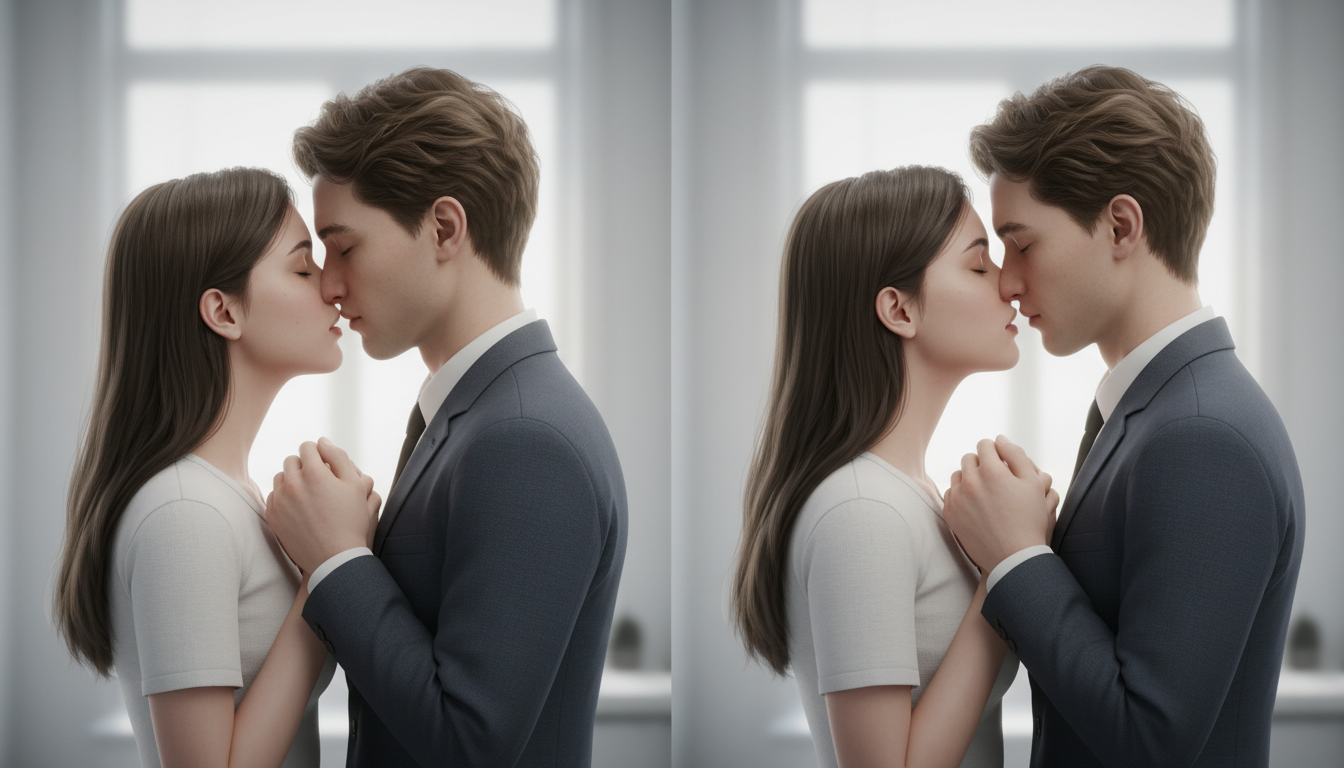
Generating realistic physical contact in AI video is historically difficult because neural networks struggle with spatial occlusion and face-merging. To generate a clean AI kissing video, you must avoid unpredictable text-to-video prompts and instead use an image-to-video workflow. By starting with a highly controlled, high-resolution source image where the characters' lips are positioned millimeters apart—rather than already touching—and applying low-magnitude motion settings, you can guide the video model to render a natural-looking kiss without anatomical distortion.
The Challenge of Close Contact: Why Text-to-Video Fails
When you prompt a text-to-video model with phrases like "two people kissing," the model frequently triggers a "fusion" glitch. Because the AI is trying to render two faces occupying nearly the exact same spatial coordinates, it often merges their distinct facial features into a single, distorted mesh. The result is a surreal, melting artifact where noses, lips, and cheeks blend together unnaturally.
Furthermore, commercial video generators employ strict safety filters. Standard prompts containing words related to physical intimacy often trigger false positives, resulting in blocked generations even when the content is completely benign and intended for dramatic, PG-rated narrative filmmaking. To bypass these limitations, creators must use highly specific, non-suggestive, clinical language in their prompts.
At Montagea, we approach this problem through multi-model orchestration. Rather than expecting a single model to generate perfect character designs, precise composition, and complex motion all in one step, we break the process down. Using an AI creative assistant for video production can help streamline this multi-step generation process by coordinating different tools for image generation and motion synthesis.
The Step-by-Step Image-to-Video Kissing Workflow
To achieve clean, anatomically correct character interaction, use this structured image-to-video sequence:
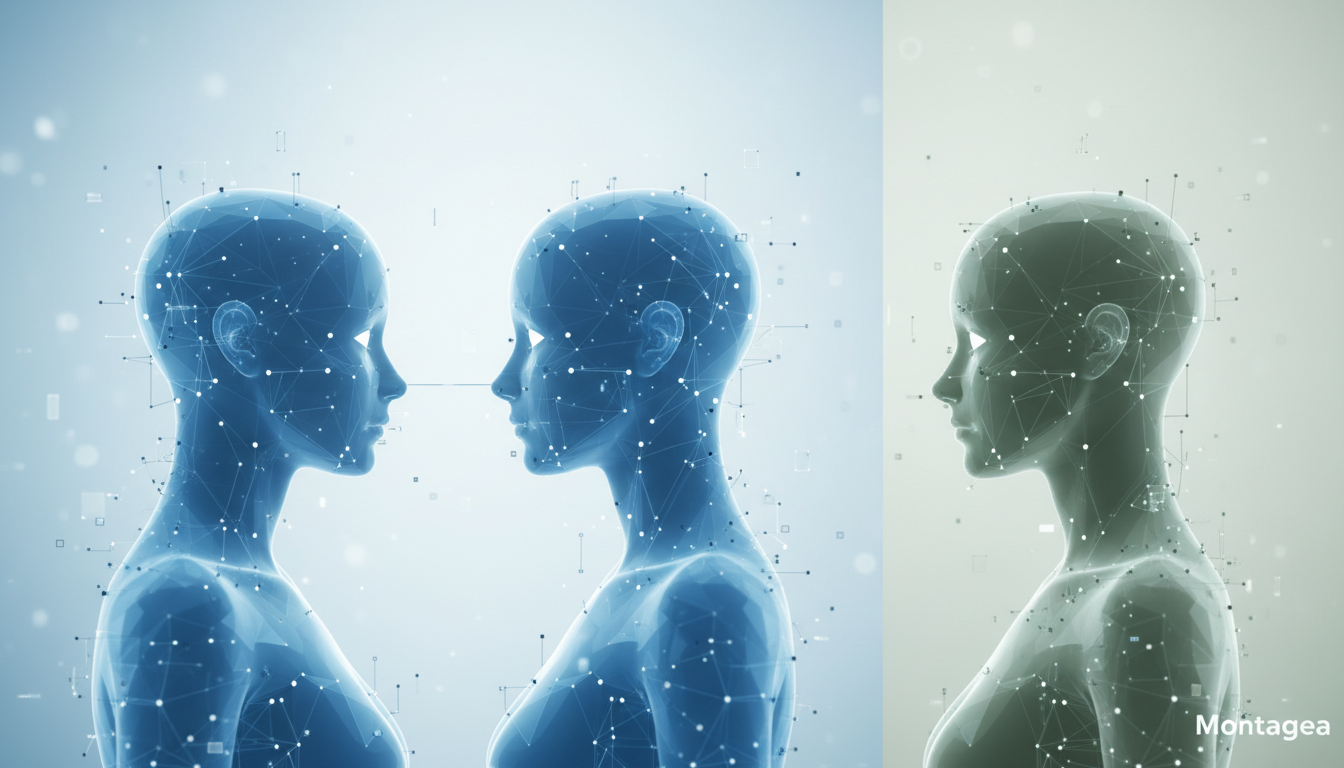
Step 1: Establish the Source Image
Generate a high-quality reference image featuring authorized adult subjects. The key to avoiding the face-merging glitch is the "near-contact" pose. Do not generate an image where the characters are already kissing. Instead, prompt for a composition where their lips are millimeters apart. This gives the video model a clean, distinct starting geometry for both faces. Learn how to prepare clean source frames in our guide on Grok video generator image-to-video workflows.
Step 2: Choose the Right Camera Angle
Camera positioning is critical. Avoid straight-on shots where one character's head completely blocks the other's face. Use a profile view (side-on) or a three-quarters (3/4) camera angle. These angles minimize facial occlusion, providing the AI model with clear depth cues and distinct silhouettes to track throughout the motion.
Step 3: Structure the Motion Prompt
When prompting the video model, use highly specific, low-magnitude verbs. Avoid broad action terms like "they kiss passionately." Instead, use precise physical instructions: "A gentle lean forward, subtle head tilt, eyes slowly closing, soft contact." This guides the model to perform micro-movements rather than chaotic, fast-paced actions.
Step 4: Configure Motion Settings
Keep the motion strength parameters low. If your chosen video generator provides a motion slider, set it to a low-to-moderate value. Lower motion values prevent the model from warping the facial geometry as the characters close the physical gap. High motion values almost always result in melting features or sudden camera shakes.
Fixing Artifacts and Maintaining Identity Consistency
Even with a perfect workflow, close-contact generations can introduce rendering errors. Use this checklist and post-production toolkit to clean up your shots:
- Hand and Arm Placement: Check if hands or arms clip through clothing or bodies. If a hand suddenly appears with extra fingers near a character's face, you will need to mask and regenerate that specific area.
- Frame Interpolation: If the model jumps abruptly at the exact moment of physical contact, export the clip to an external editor and apply selective frame interpolation to smooth out the transition.
- Temporal Inpainting: When localized facial distortions occur during the kiss, do not discard the entire generation. For step-by-step correction techniques, see our guide on AI video inpainting for temporal consistency. By isolating the distorted area (such as a warping jawline) and applying a targeted inpaint mask, you can maintain character likeness across the entire sequence.
Choosing a Video Engine for Physical Contact
Different video models handle close-range human interactions, motion controls, and safety boundaries with varying degrees of success. When selecting an engine for generating physical contact, consider the following general criteria:
- Motion Control Precision: Look for models that offer fine-grained motion controls or camera path tools, which allow you to limit sudden movements that cause facial warping.
- Safety Filters: Commercial platforms often have automated filters that may flag close-up facial interactions. Reviewing the platform's guidelines and using clinical, neutral prompting can help prevent false positives.
- Local vs. Cloud Engines: Running open-source models locally can bypass commercial filter limitations entirely, though they may require more technical setup and hardware resources compared to cloud-based commercial engines.
For creators working on complex narrative films, utilizing a multi-model orchestrator like Montagea can help streamline the process. Montagea allows you to leverage different specialized models for image generation and motion synthesis, helping you find the right balance of visual fidelity and control for challenging scenes.
Why does the AI merge the two characters' faces into one during a kiss?
AI models struggle with spatial occlusion. When two faces get too close, the neural network cannot distinguish where one face ends and the other begins, leading to a merged, distorted mesh. Starting with a 'near-contact' image helps the model maintain separate facial geometries.
How do I prevent my kissing prompts from being blocked by safety filters?
Avoid suggestive or highly emotional words. Use objective, clinical, and physical descriptions like 'characters lean forward, eyes closed, gentle facial contact' to describe the scene without triggering automated flags.
Can I generate a consistent kissing scene using free AI video tools?
Many platforms offer free trial credits, but generating realistic physical contact usually requires multiple iterations and precise motion controls. Advanced settings are typically locked behind paid tiers, making free tools less reliable for complex character interactions.