How to Fix AI Video Characters Walking in the Wrong Direction
When AI characters walk backwards or slide across the screen, a vector conflict is usually to blame. Learn how to systematically isolate and correct camera movement, image orientation, and motion brush settings to maintain perfect spatial continuity.
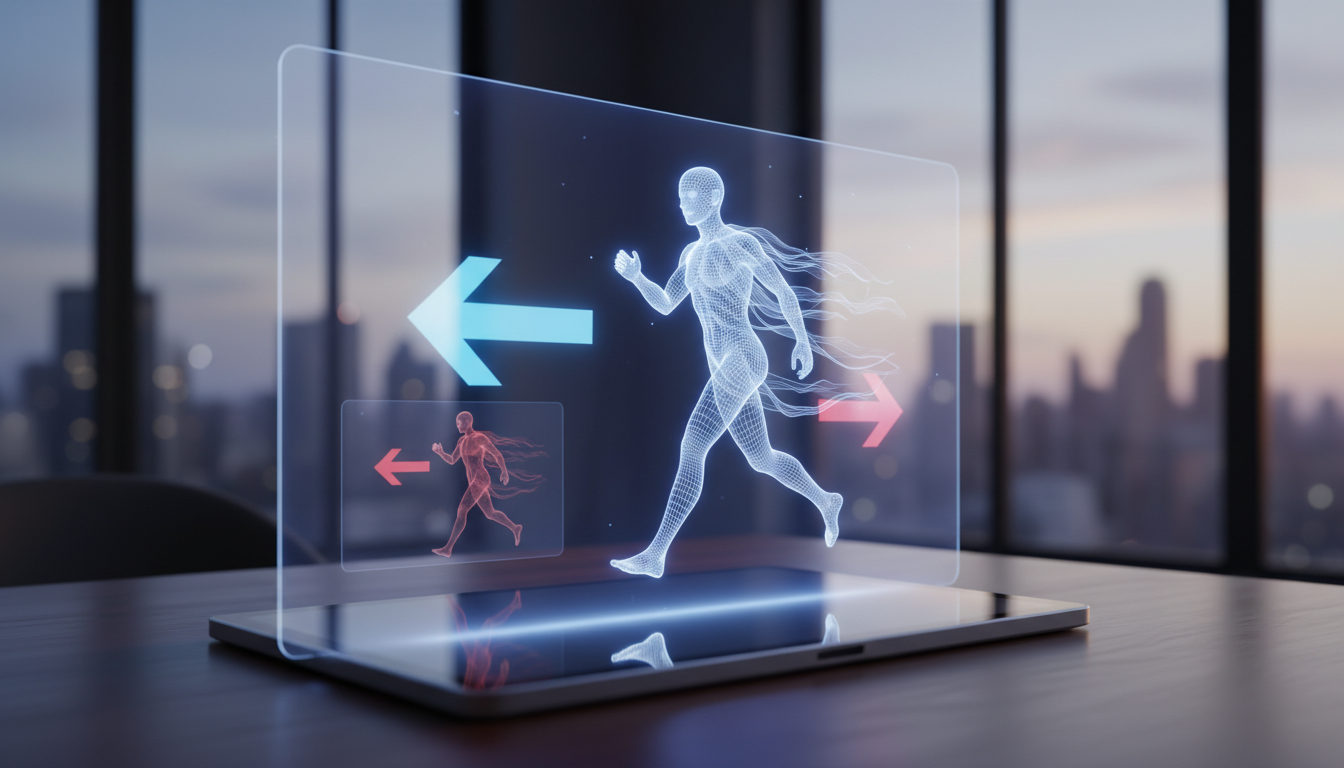
When an AI-generated character walks backward, slides laterally (’moonwalks’), or moves in the wrong screen direction, the cause is almost always a vector conflict between the starting image's spatial orientation, the camera's motion path, and the text prompt's physical instructions. In image-to-video (I2V) workflows, generative models struggle to reconcile a character facing one direction with a motion vector or camera pan traveling in another, resulting in anatomical collapse or reversed physics. To resolve this, you must systematically isolate your variables: flip your source image to match the target vector, write explicit camera-relative directional prompts, and limit motion brush intensity to prevent the physics engine from breaking.
The Screen Direction Problem: Why AI Characters Walk Backwards
AI video engines do not understand human anatomy or walking mechanics the way a director does. Instead, they predict frame-by-frame pixel changes based on patterns in their training data. When you encounter a character walking backwards or sliding across the frame, it is typically due to one of three underlying conflicts:
- Asset Orientation Conflict: The character in your starting image is oriented toward screen-left, but your text prompt or motion brush commands movement toward screen-right. Rather than turning the character around—which requires generating entirely new visual data—the engine simply pulls the existing pixels backward.
- Camera Vector Conflict: If the camera is panning to the right while a character is walking to the right at a similar speed, the relative motion can confuse the model. The engine may attempt to keep the character centered by sliding them backward against the background pan.
- Unconstrained Motion Paths: Broad, unconstrained motion brush strokes tell the AI where pixels should go, but not how they should get there. Without clear structural boundaries, the model often resorts to a lateral slide rather than generating a natural forward-stepping walk cycle.
To fix these issues without wasting valuable generation credits on random re-rolls, you must adopt a strict, one-variable-at-a-time troubleshooting protocol. Never adjust your text prompt, camera settings, and motion brush values simultaneously.
Step-by-Step Troubleshooting Protocol for Subject Motion
Use this systematic checklist to isolate and correct character movement errors in your generations. Work through these steps in order, testing the output after each adjustment to find the exact point of failure.
Step 1: Verify and Match Starting Image Orientation
Before adjusting any prompts or motion settings, look at your source image. If the character is facing screen-left, they must walk screen-left. If you need them to walk screen-right, do not rely on the text prompt to turn them around. Open an image editor and flip the source image horizontally before uploading it to the AI video engine.
Step 2: Write Explicit, Camera-Relative Prompts
Generic prompts like "man walking down the street" leave too much room for model interpretation. You must explicitly separate the camera's path from the character's path. Use precise directional language to define the action relative to the frame boundaries.
For example, instead of "man walking right," use: "The camera remains static as the man walks forward, moving from screen-left to screen-right in a profile view." If you need to give feedback to a remote team or refine your own generations, understanding how to translate visual errors into precise, actionable prompts for your crew or AI engines is essential for achieving predictable physical motion.
Step 3: Calibrate Motion Brush and Path Tools
When using motion brushes (such as those in Runway or Kling), do not paint a single straight arrow pointing directly to the edge of the frame. This tells the engine to pull the entire selection linearly. Instead, paint a subtle, slightly curved path that mimics the natural forward trajectory of a human stride, keeping the vector length moderate.
Step 4: Lower the Motion Intensity Slider
High motion values (typically above 5 on a 10-point scale) prioritize rapid pixel displacement over anatomical accuracy. This frequently breaks the physics of a walk cycle, turning a grounded step into a chaotic slide. Lower the motion scale to a value between 3 and 5 to allow the engine's physics model to render realistic footfalls.
| Observed Symptom | Primary Root Cause | Immediate Corrective Action |
|---|---|---|
| Character slides laterally ("moonwalks") without moving their legs. | Camera pan speed matches or conflicts with the character's movement vector. | Set camera motion to static or pan in the opposite direction of the character's walk. |
| Character walks completely backward. | Starting image orientation opposes the prompted movement direction. | Flip the starting image horizontally to align the character's face with the target vector. |
| Legs melt, glitch, or clip through the ground. | Motion scale/intensity is set too high for the model to compute proper anatomy. | Lower the motion intensity slider to a moderate level (3 to 5) and re-render. |
Maintaining Spatial Continuity Across Collaborative Scenes
Fixing a single shot is only half the battle. In narrative filmmaking, screen direction errors can completely destroy the 180-degree rule and ruin shot transitions when assembling a sequence. If a character exits screen-right in Shot A, they must enter from screen-left in Shot B to maintain spatial logic for the audience.
On collaborative platforms like Montagea, different crew members often render sequential shots using a variety of specialized engines such as Kling, WAN, or Runway. Because each engine interprets motion vectors differently, establishing strict screen-direction guidelines in your scene briefs is critical for maintaining visual continuity and smooth screen-direction transitions across cuts.
When setting up collaborative workflows, planning your scene dependencies can help you coordinate screen direction across parallel shots. Clearly define "screen-left to screen-right" or "screen-right to screen-left" trajectories within each scene's technical brief. This helps contributors align their renders so the final sequence cuts together with fewer jarring spatial jumps.
Why does my character walk backward when I use a static camera prompt?
This usually happens because the generative model misinterprets the depth or perspective of your starting image. If the character's body is angled slightly away from the camera, the model may choose the path of least resistance and pull the character backward to avoid generating a complex turn. To fix this, use a clear profile or 3/4 view starting image and explicitly state "walking forward, away from the camera" or "walking forward, toward the camera" in your text prompt.
Can I use negative prompts to stop a character from walking in the wrong direction?
While negative prompts like "backwards walking, moonwalking, reverse motion, sliding legs" can sometimes help, they are generally less effective than correcting the physical vector conflicts. Prioritize matching your starting image orientation, lowering your motion scale, and aligning your motion brush paths before relying on negative prompts.