How to Face Swap an Animated GIF with AI: Workflows for Clean Temporal Consistency
Swapping a face onto an animated GIF often leads to warping, pixelation, and alignment loss. This guide details the professional conversion-first workflow to achieve clean temporal consistency and high-fidelity results.
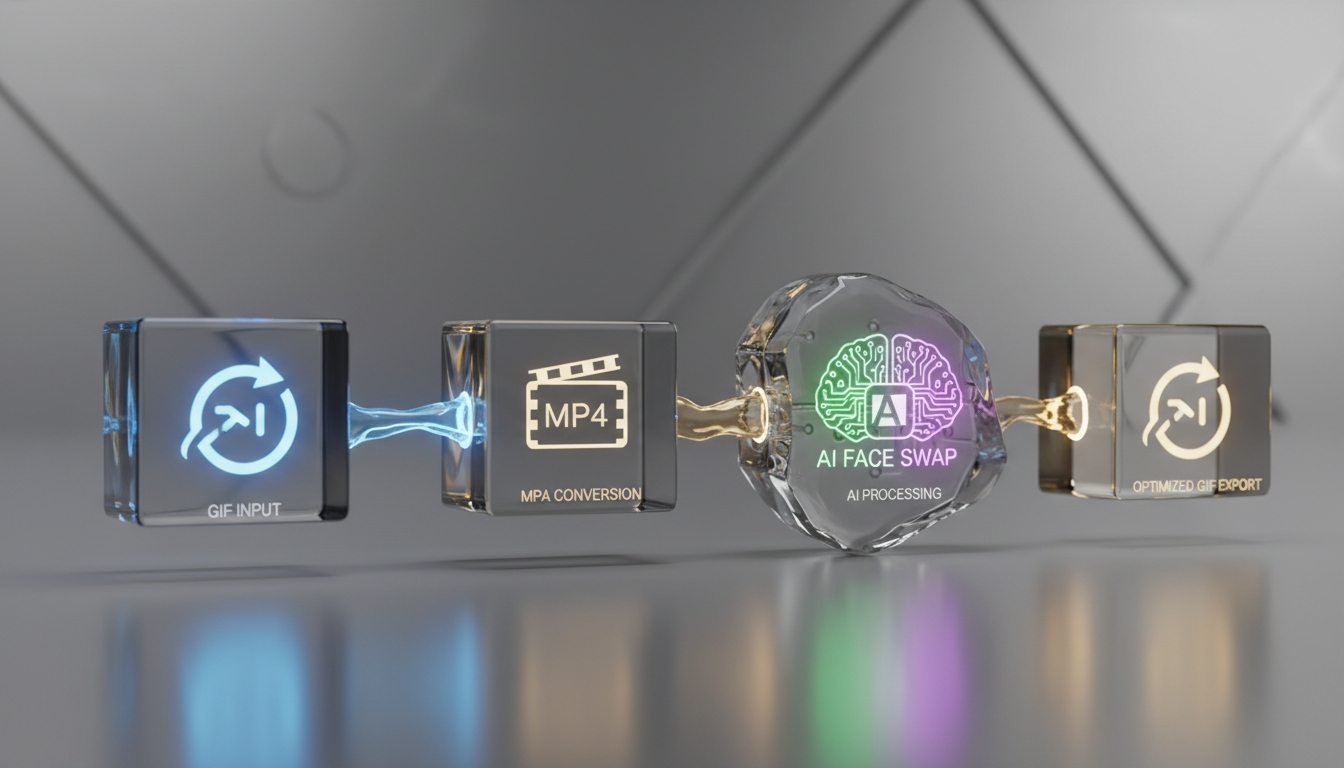
To face swap an animated GIF with high visual clarity and temporal consistency, you must avoid directly uploading raw GIF files to automated web tools. Instead, convert the GIF into a lossless video container (such as an MP4 or ProRes file), process the video through a dedicated AI face-swap tracking engine, and then re-export the finished sequence back to a compressed GIF format. This conversion-first workflow preserves the necessary color depth and frame timing for the AI model to track facial geometry without warping or jitter.
The Technical Challenge of GIF Face Swapping
Animated GIFs are highly compressed, legacy image formats designed for basic web playback. They rely on an indexed 256-color palette and often feature low or variable frame rates. These characteristics run counter to how modern AI face-swap models operate. AI tracking engines are trained on continuous, high-fidelity video streams where they can map and predict facial geometry across sequential frames.
Directly uploading a compressed GIF to a standard online face-swapper typically results in severe color banding, heavy pixelation, and misaligned facial tracking. Because the GIF lacks rich color data and smooth frame intervals, the AI struggles to lock onto the facial mesh. Treating the GIF as a video asset from the start solves this issue. By converting the GIF into an MP4 or ProRes container, you maintain the precise frame sequence and give the AI engine the temporal data it needs to align the replacement face accurately.
Step-by-Step AI GIF Face Swap Workflow
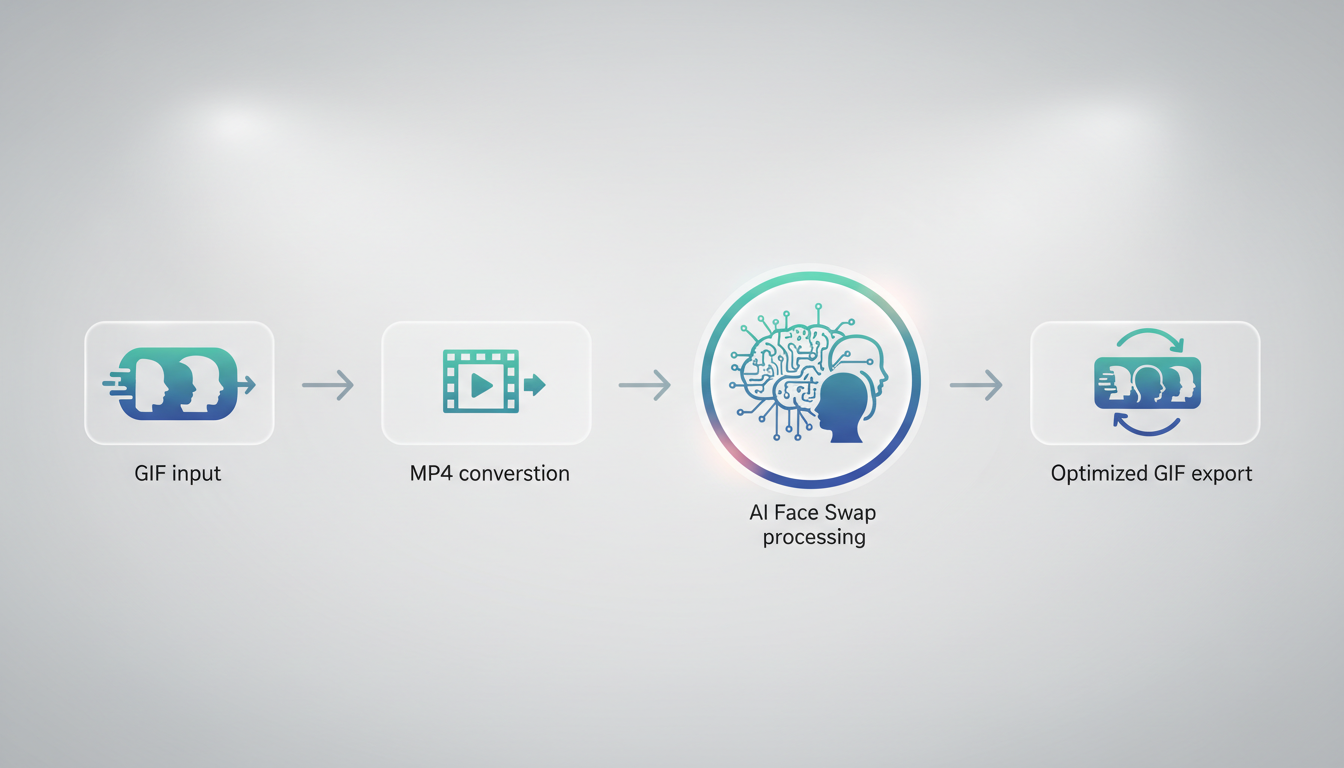
This structured workflow ensures that your final animated GIF retains its original timing while displaying a clean, stable face swap.
Step 1: Lossless Video Conversion
Begin by converting your source GIF into a standard H.264 MP4 or Apple ProRes file. You can use free open-source utilities like FFmpeg or dedicated desktop conversion tools. Ensure that you maintain the exact frame rate of the original GIF during conversion to prevent timing or duplicate-frame issues.
Step 2: Source Photo Selection and Preparation
The success of the swap relies heavily on your source image. Select a high-resolution, front-facing photograph of the face you want to insert. For the best results, match the lighting direction and head rotation angle of the target face in the original GIF. If the target face in the GIF is tilted at a 45-degree angle, a direct headshot will cause perspective distortion during the swap.
Step 3: Process Through a Dedicated AI Video Engine
Upload your converted video and the source face photo into a dedicated AI video face-swap platform. Platforms like Higgsfield track facial geometry, skin tone, and lighting frame-by-frame, ensuring that the swap remains locked in even through fast motion. The AI analyze the video frames sequentially, mapping the source face onto the 3D geometry of the target face.
Step 4: Re-Export to GIF
Once the video swap is complete, download the high-resolution MP4. To convert it back into an animated GIF, use a creative tool or encoder that supports custom dithering (such as Adobe Photoshop or ezgif). Adjust the dithering settings to blend the 256-color palette smoothly, which prevents ugly color banding on the facial skin tones.
| Workflow Stage | Direct GIF Upload (Not Recommended) | Video-First Workflow (Recommended) |
|---|---|---|
| Input Format | Compressed .gif file | Lossless .mp4 or .mov file |
| Color Depth | Limited to 256 colors; causes banding | Full 8-bit or 10-bit color space |
| Tracking Accuracy | Low; prone to frame-by-frame jitter | High; stable 3D facial mesh tracking |
| Final Output Quality | Pixelated with visible edge artifacts | Clean, smooth blending with custom dithering |
Solving Temporal Jitter and Facial Stability
Even with a video-first workflow, fast motion, rapid head turns, and sudden lighting changes can cause the AI to lose its lock on the facial mesh. When this happens, you will notice "face morphing"—a distracting effect where the facial features warp or flicker between frames. To minimize this, select source faces that closely align with the rotational limits of the target video. If the character in the GIF turns their head fully to the side, a single flat source photo will not provide enough geometric data for a clean profile swap.
For professional-grade consistency, creators often use multi-model pipelines that emphasize temporal stability over single-frame accuracy. To understand how to prevent these artifacts in detail, read our deep dive on stopping face morphing in AI video production, which covers advanced tracking mechanics and frame-interpolation techniques.
Selecting the Right Tools for Your Creative Workflow
Choosing the right tools depends on your project scope, budget, and quality requirements. Simple, free web-based tools are highly accessible and work well for casual social media memes. However, they frequently lack the advanced tracking controls, resolution options, and robust privacy protections required for commercial or professional creative work.
For production-grade campaigns, creators leverage multi-model platforms like Montagea. Within the Montagea ecosystem, creative agents like Gigi can select the best underlying models for specific tasks, planning the steps to deliver finished video, image, or music assets. If you are deciding on a platform for your studio, you can review our guide on choosing the best AI video editing tools for modern production workflows.
Additionally, when scaling up your production to handle batch swaps or complex multi-character sequences, resource management becomes a key factor. Processing high-resolution video swaps consumes significant cloud computing power. To keep your project on track, we suggest reading our guide on planning an AI video credit budget for multi-model filmmaking to optimize rendering costs and avoid unexpected production bottlenecks.
Can I face swap a GIF that contains multiple people?
Yes, but it requires advanced AI tools that support multi-face detection. Most basic web-based swappers will either swap only the primary face or apply the same source face to every person in the frame. Professional video tools allow you to isolate and select specific tracking IDs for individual faces, letting you swap different source photos onto different characters within the converted video sequence.
Why does my face-swapped GIF look pixelated, and how do I fix it?
Pixelation is usually caused by double compression. If you upload a compressed GIF directly and then export it again, the image quality degrades rapidly. To fix this, always start with a high-resolution source video or convert the original GIF to a lossless format first. When converting the final swap back to a GIF, use a high-quality encoder and apply ordered or diffusion dithering to smoothly blend the colors.
Do free online face swappers keep my uploaded photos private?
Many free, ad-supported online tools do not guarantee data privacy and may retain your uploaded photos or use them for model training. For commercial projects or sensitive personal content, always review the platform's privacy policy. Professional tools and enterprise-grade platforms offer strict data governance, ensuring your uploaded source faces and final outputs are deleted from their servers after processing.