How to Remove Video Backgrounds and Clean Up Edges for Compositing
Isolating a moving subject requires more than a simple one-click cutout. Discover how to evaluate alpha channels, inspect complex edges, and successfully composite your subject into a new scene.
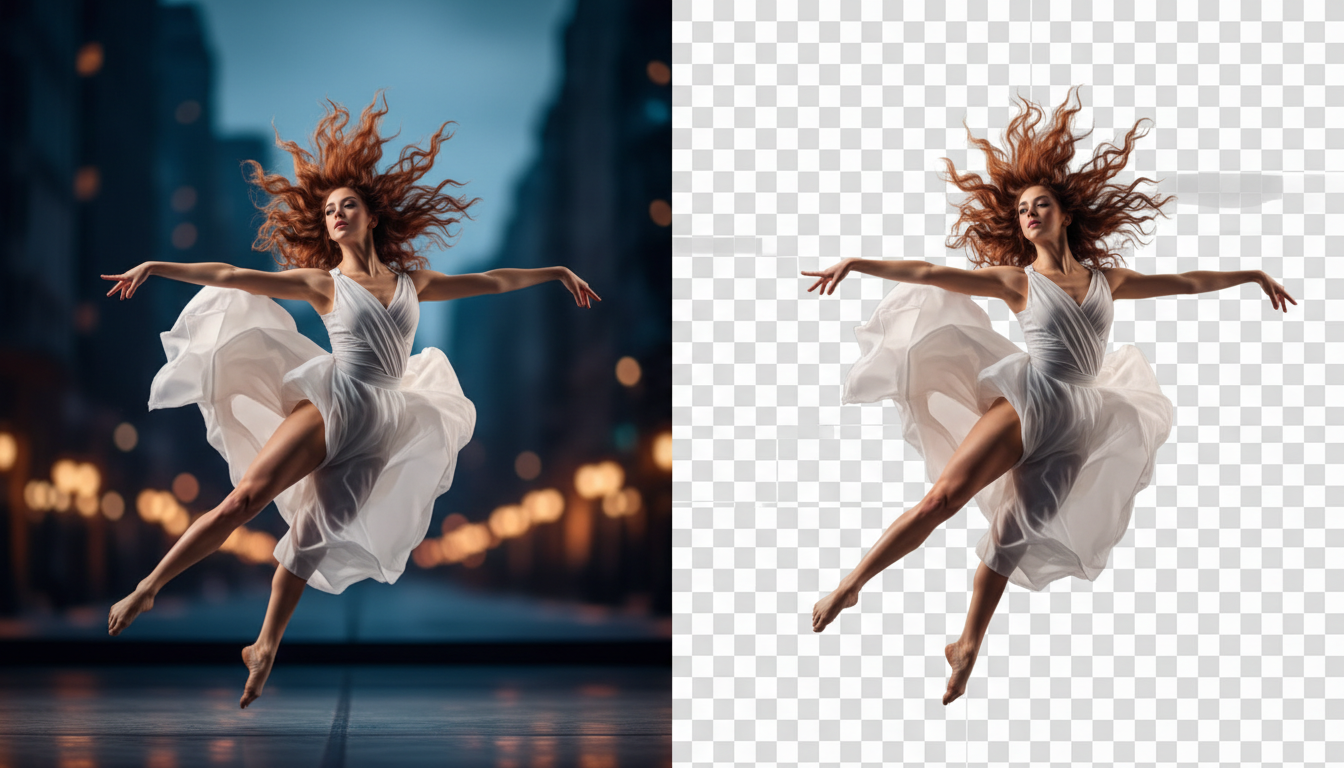
To remove a video background cleanly for professional compositing, you must isolate the moving subject, generate a high-fidelity mask, and evaluate whether to export a true alpha-channel video or a flattened color-key replacement. While modern AI-driven background removers automate the tedious process of manual rotoscoping, achieving a seamless composite requires active quality control over edge details like hair, motion blur, and temporal consistency. This guide outlines how to prepare your source files, run frame-by-frame tracking, and successfully blend your isolated subject into a new environment without telltale edge halos.
At Montagea, we view video production as an integrated pipeline. Whether you are using our AI creative agent, Gigi, to orchestrate multi-model generation, or manually compositing assets in a traditional editor, understanding how to isolate elements is critical for maintaining visual quality across your scenes.
The Core Challenge: Alpha Channels vs. Flattened Replacements
When preparing an isolated subject for post-production, your choice of export format dictates how much control you maintain during the final composite. The two primary methods for exporting isolated video subjects are 32-bit alpha channels and flattened color-key plates.
An alpha channel (RGBA) is the gold standard for professional visual effects. In addition to the standard Red, Green, and Blue color channels, an alpha channel stores transparency data as a grayscale mask. This allows your video editor to recognize exactly which pixels are solid, which are completely transparent, and which are semi-transparent. This semi-transparency is vital for preserving fine, difficult-to-isolate details such as stray hair strands, smoke, or glass reflections. Common alpha-supporting formats include Apple ProRes 4444 (for macOS/cross-platform workflows) and WebM (for lightweight web applications).
A flattened replacement, by contrast, places the isolated subject against a solid, high-contrast backdrop—typically a bright green or solid black screen. This approach is necessary when using basic video editors that do not support raw alpha video formats, or when working within strict file size limitations (since standard 8-bit formats like H.264 do not support alpha data). However, keying out a flattened green background in post-production can introduce color spill and degrade delicate edge details, making it a secondary choice compared to a native alpha export.
| Feature | Alpha Channel (RGBA) | Flattened Color-Key (Chroma Key) |
|---|---|---|
| Transparency Data | Stored natively as a grayscale mask (8-bit or 16-bit alpha). | No native transparency; relies on a solid color background. |
| Edge Quality | Preserves semi-transparent details like hair and motion blur. | Often suffers from color spill and harsh, jagged borders. |
| File Formats | ProRes 4444, WebM, or PNG sequences. | MP4 (H.264), MOV (H.264), or other standard 8-bit containers. |
| File Size | Large, visually lossless or uncompressed files. | Highly compressed, lightweight files. |
Step-by-Step Workflow for AI Background Removal
Isolating a subject from its original environment requires a systematic approach to preserve detail and prevent visual artifacts. Follow this three-step workflow to achieve clean, production-ready cutouts.
Step 1: Source Preparation
The accuracy of any AI-driven tracking model depends heavily on the quality of the input footage. To get clean edges, your source video must have sharp details. Just as when you prepare inputs for motion transfer, high contrast and minimal motion blur are key. If your source video has compression artifacts or soft focus, consider how to deblur reference images or video frames before running isolation models to ensure the AI detects boundaries accurately.
Step 2: Tracking and Temporal Consistency
Once your clip is uploaded, the AI model tracks your subject frame by frame. Unlike static image isolation, video requires deep temporal consistency. This means the boundaries of the mask must remain stable over time. Watch the generated mask closely to ensure that rapid motions, rotations, or moments where the subject is partially blocked (occlusion) do not cause the edges to flicker, warp, or jitter. This focus on temporal stability is similar to the techniques used in motion transfer for character consistency in AI video production, where maintaining structural integrity across frames is paramount.
Step 3: Edge Inspection and Compositing
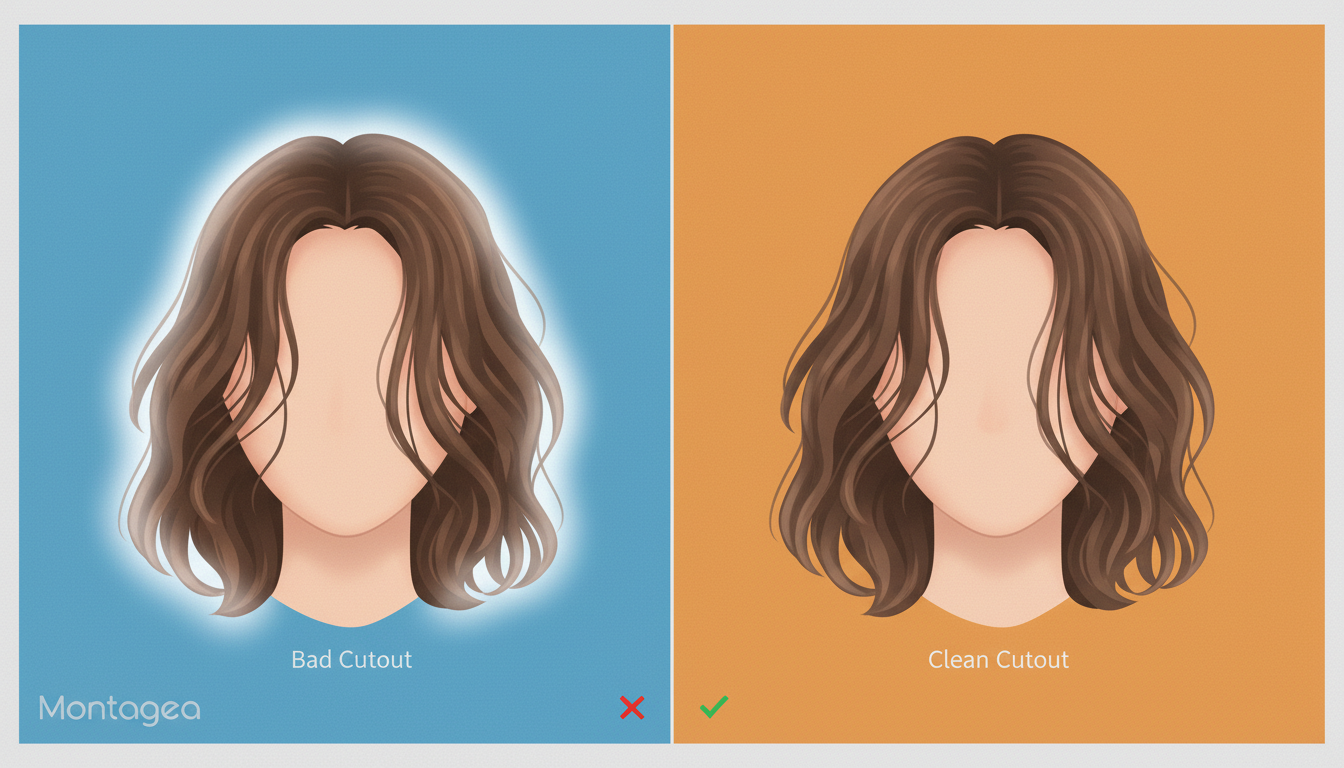
Once isolated, inspect the edges under a high-contrast background (such as solid black or white) before dropping the subject into your final scene. Fine details like hair require special attention. If you are compositing your subject onto a newly generated background, you might also consider using AI image extenders to reframe assets to match the perspective of your original shot. For advanced workflows where you want to keep the foreground static while manipulating the environment, check out our guide on The Isolated Motion Protocol: How to Animate Only the Background in AI Video.
Practical Edge Cleanup Checklist
- Flicker Check: Review the clip closely to identify any frame-to-frame edge jitter or sudden mask expansion.
- Color Spill Correction: Apply a spill suppressor to remove any reflected colors from the original background that remain on the subject's skin or clothing.
- Light Wrapping: Blend the subject into the new background by allowing the background's dominant colors to bleed slightly over the edges of the foreground subject.
- Feathering and Choking: Apply a fraction-of-a-pixel edge feather to soften harsh digital cutouts, or choke the matte slightly if a thin halo is visible.
Why does my isolated video look jagged or blurry around the edges when imported into my editor?
This usually happens when the video is compressed during export or when the editor does not interpret the alpha channel correctly (premultiplied vs. straight alpha). Ensure you export using a high-quality, visually lossless format like ProRes 4444 and verify your editor's alpha interpretation settings in the clip properties.
Can I remove the background from a video that has heavy camera shake or low lighting?
While AI background removers can handle moderate motion, extreme camera shake or low-light noise makes it difficult for the tracking model to distinguish the subject's boundaries. Pre-stabilizing your footage or applying noise reduction before running the background remover will significantly improve edge accuracy.
Is it better to use a green screen during filming if I plan to use an AI background remover later?
If you have the resources, a well-lit green screen is always ideal because it provides maximum color contrast. However, modern AI tools are specifically built to bypass the need for physical green screens, allowing you to isolate subjects from natural, complex backgrounds with high precision.