How to Prompt Clean Character Entries and Exits in AI Video
AI video models often struggle with the edges of the frame, treating off-screen space as a generative void. By using structured blocking prompts, empty-plate keyframes, and collaborative checklists, filmmakers can execute seamless character entries and exits.
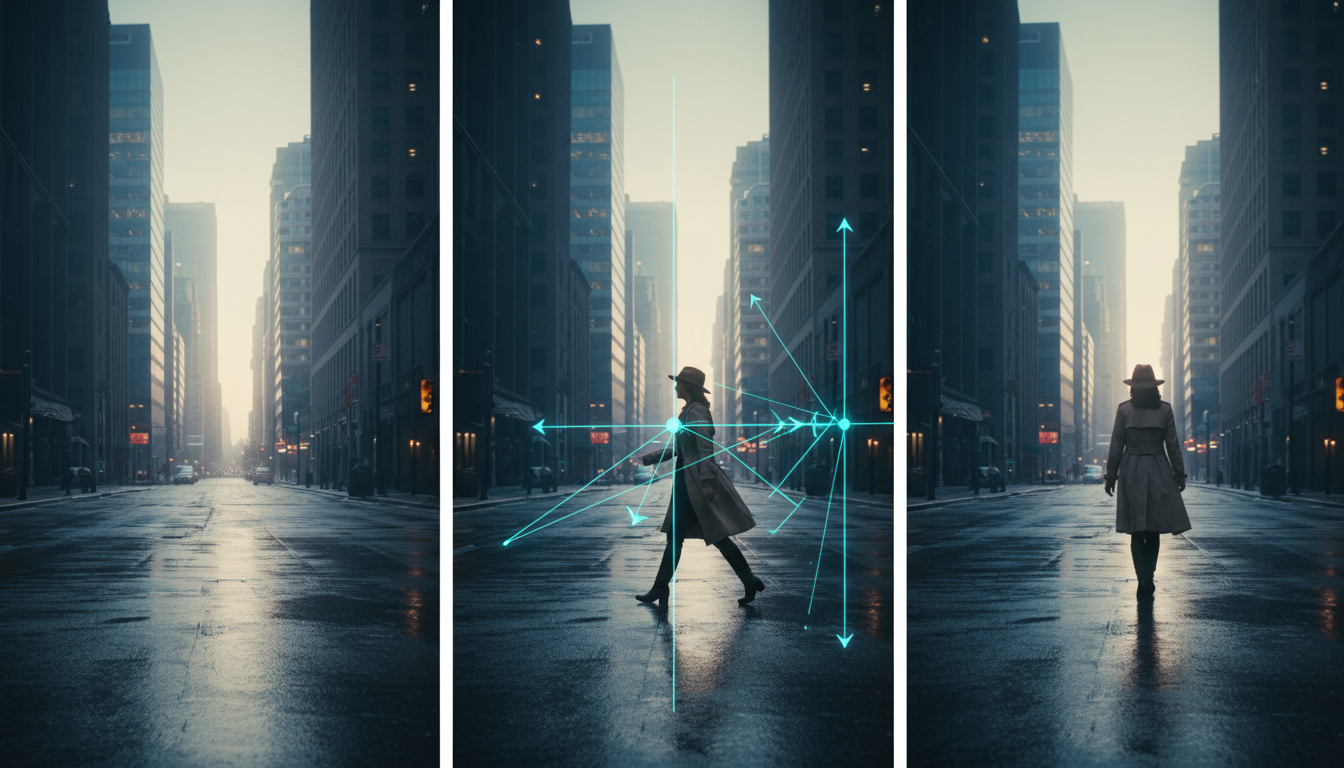
Executing clean character entries and exits in AI video requires defining the off-screen space as a physical reality rather than a generative void. Because diffusion models lack spatial permanence, characters often warp, teleport, or mutate when crossing the frame boundary. You can resolve these issues by using empty-to-occupied prompt structures for entries, setting empty-plate keyframes for exits, and matching camera motion vectors to the character's movement path. While these techniques work across major engines, minor manual post-production masking may still be required for complex, high-motion shots.
The Physics of the Frame: Why AI Characters Warp at the Edges
Most AI video models operate by predicting the next frame based on the pixels currently in view. They have no inherent memory of what exists "off-camera." When a character is halfway out of the frame, the model attempts to resolve the missing limbs or torso by blending them with the nearest background pixels.
This creates the "edge-warp" phenomenon: a character's arm might fuse with a brick wall, or their jacket might morph into a streetlamp as they cross the boundary. Because the AI is trying to maintain visual coherence with surrounding pixels, the edge of the frame acts like a gravitational pull, distorting the character's geometry.
To combat this, professional workflows begin with an "empty plate" generation—a clean, stable shot of the environment before any character enters. This establishes the background geometry, preventing the model from hallucinating new environmental details when the character eventually appears. By generating a clean plate first, you provide a solid spatial anchor for subsequent frames.
Prompting the Entry: Blocking the Walk-In
To bring a character into a scene naturally, you must use an "Empty-to-Occupied" prompting sequence. Instead of simply prompting "A man walks into the room," structure the prompt to describe the static environment first, followed by the camera movement, and finally the character's entry.

For example: "A dimly lit concrete hallway. The camera pans slowly to the right, revealing a detective in a trench coat as he steps into the frame from the left edge, walking forward." By guiding the camera's focus, you give the AI model a logical reason to introduce new pixels. The panning motion naturally draws the character into the frame rather than forcing them to materialize out of thin air.
To maintain visual consistency during this entry, you must anchor the character's design. Utilizing a structured reference sheet helps prevent the model from generating a generic figure that morphs as it becomes fully visible. To ensure the character entering the frame retains their exact visual identity, use a sliced character sheet as a reference image; see our guide on prompting and slicing AI character reference sheets to lock in these details.
Orchestrating the Exit: Preventing Identity Drift at the Threshold
Exits present the opposite problem: models hate letting go. When a character is prompted to leave, they will often freeze at the edge, turn back to face the camera, or dissolve into a cloud of visual noise. This occurs because the model tries to keep the primary subject in focus.
To execute a clean exit, use an "Occupied-to-Empty" workflow. The prompt should explicitly instruct the character to move completely past the camera lens, leaving only the background. For example: "A woman walks down a narrow alleyway, moving directly past the camera until she is completely out of frame, leaving only the empty alleyway."
For models that support multi-frame control, keyframing can be highly effective. By defining the exact start and end states, you can guide the model to clear the frame entirely. Setting the final keyframe as a completely empty plate helps transition the character out of the shot smoothly.
Common Edge-Transition Failures and Solutions
| Failure State | Root Cause | Solution |
|---|---|---|
| Border Freeze | Model tries to keep character in view | Use camera motion (pan/dolly) in the opposite direction, or force an empty last-frame keyframe. |
| Identity Mutation | Edge pixels blend with background | Apply character reference images and lower the motion strength setting to reduce frame-edge distortion. |
| Teleportation | Sudden appearance without transition | Use a camera pan to "reveal" the character already in motion, rather than prompting them to step in. |
The Frame Boundary Checklist for Collaborative Renders
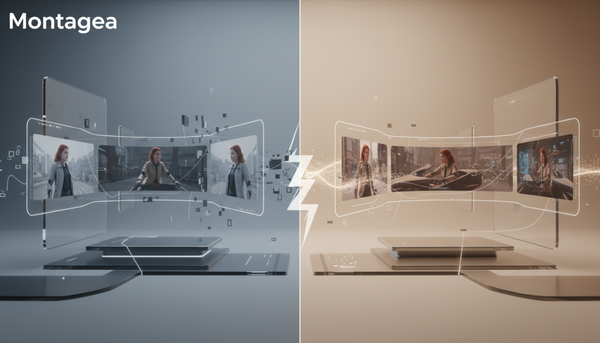
When producing complex sequences, different shots are often distributed among multiple creators. On Montagea, a collaborative AI video platform, one contributor might render the entry shot using one engine (such as Kling), while another handles the exit using a different model (such as WAN or Veo). To ensure seamless continuity across these different engines and creators, teams must align on a strict frame boundary checklist.
- Entry/Exit Edge: Define exactly which side of the screen the character exits (e.g., screen right) and enters in the next shot (e.g., screen left).
- Destination Point: Mark where the character should end up relative to the camera (e.g., mid-ground center).
- Shot Duration: Standardize the timing (e.g., 3-second render with the exit occurring at exactly 2.5 seconds).
When managing transitions between multiple shots handled by different team members, utilizing a structured approach to AI video scene dependency planning prevents continuity breaks. This allows creators on Montagea to claim open scenes with confidence, knowing the spatial boundaries of the preceding and succeeding shots are fully locked.
Why does my character turn into a different person when they walk into the frame?
This happens because the AI model generates the character's features incrementally as they cross the frame boundary. Without a strong visual reference, the model guesses the character's appearance based on the newly revealed pixels, leading to identity drift. Using character reference sheets and starting with an empty-plate camera pan helps anchor the identity.
How do I stop the camera from following the character when I want them to exit the frame?
To keep the camera static during an exit, explicitly prompt for a stationary camera (e.g., "static tripod shot") and pair it with an "Occupied-to-Empty" prompt. If the model still tracks the character, use a keyframing workflow where the final frame is set to a completely empty plate of the environment.
Which AI video engines handle frame-edge transitions best?
Engines that support multi-frame keyframing generally handle exits well, as they allow you to define an empty final frame. For entry shots, models with robust image-to-video capabilities can perform well when initialized with a character reference image positioned near the edge of the frame, though results vary depending on the specific model's spatial consistency.