Can ChatGPT Make Videos? Practical Workflows for AI Video Production
While ChatGPT is an exceptional director and scriptwriter, it cannot render raw video files natively. Learn how to use ChatGPT as a planning engine paired with dedicated video generation tools to build a complete AI production pipeline.
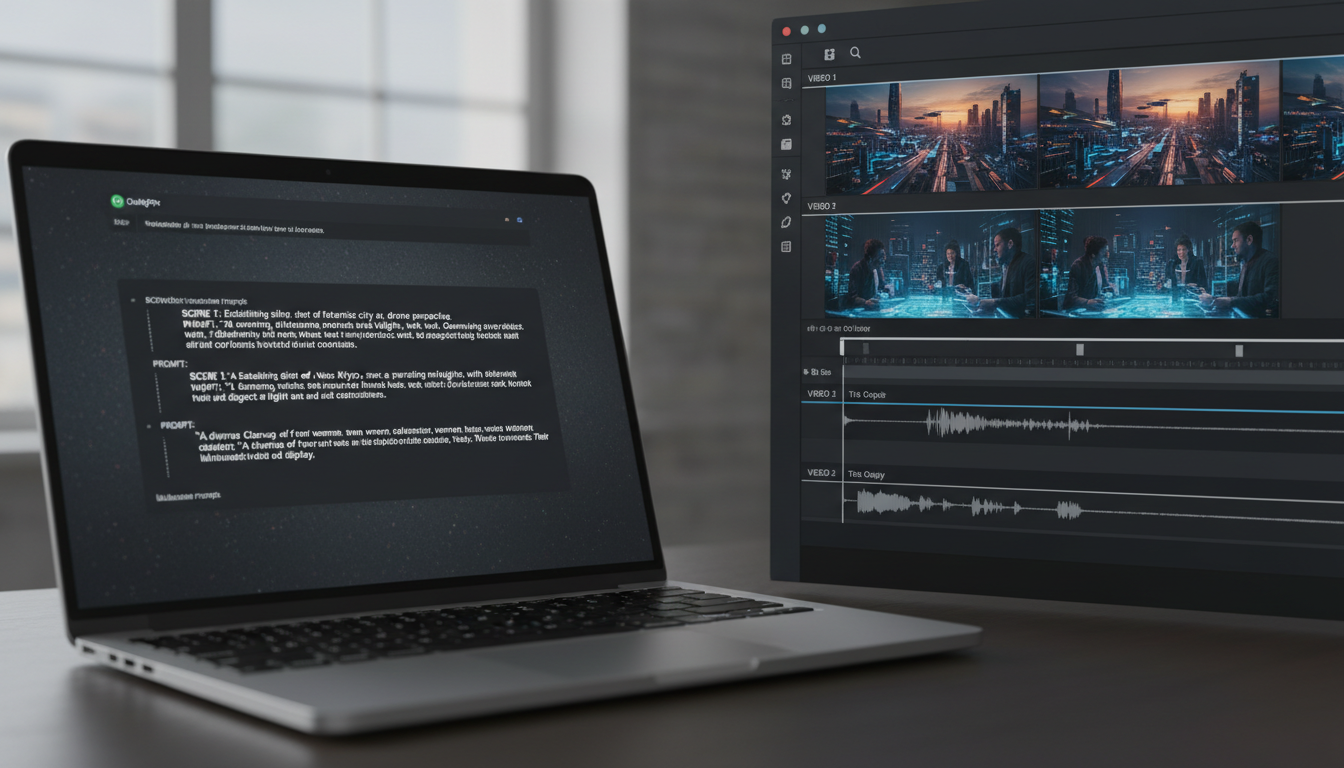
No, ChatGPT cannot natively render or export MP4 or MOV video files directly from a text prompt. While OpenAI developed the Sora video model, access within the standard ChatGPT interface remains highly restricted compared to text and image generation. Instead of rendering pixels, ChatGPT acts as a planning engine—writing scripts, outlining storyboards, and structuring precise prompts. To produce actual video files, you must feed ChatGPT’s structured outputs into dedicated video generation engines or use an AI creative agent like Montagea to coordinate the rendering process automatically.
The Direct Answer: ChatGPT's Video Capabilities and Limitations
To use ChatGPT effectively in video production, you must distinguish between the creative planning phase and the physical rendering phase. ChatGPT is a Large Language Model (LLM); its core architecture is built to process and generate text. While it can write a flawless script or format a camera-ready prompt, it does not possess the native processing pipeline required to compile video frames, manage temporal consistency, or export media files.
OpenAI’s Sora is a dedicated video generation model, but it is not a standard utility built directly into the general-use ChatGPT prompt bar. Standard ChatGPT Plus or Enterprise accounts do not offer unlimited, direct rendering via Sora. Instead, ChatGPT serves as the "brain" of your production. It handles the conceptual heavy lifting, leaving the actual pixel generation to external rendering models.
The ChatGPT-to-Video Workflow: From Script to Screen
To turn an idea into a finished video using ChatGPT, you must follow a structured, multi-step pipeline that translates abstract text into concrete visual instructions.
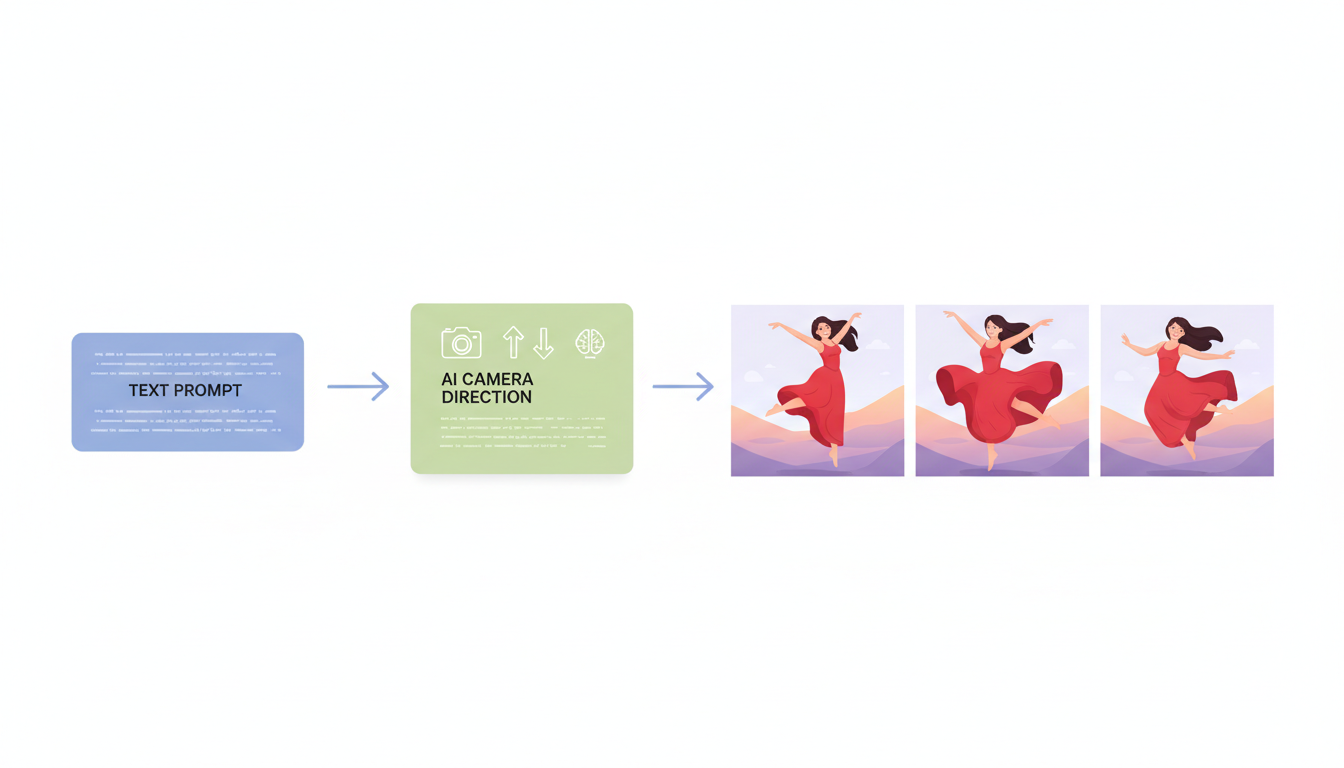
Step 1: Scripting and Pacing
Begin by asking ChatGPT to write a script that includes both spoken audio and explicit visual cues. If you plan to publish your generated content, check out our guide on whether you can use an AI narrator on YouTube to understand monetization and platform policies. Instruct the model to format the script with timestamps and clear scene transitions so that each segment corresponds to a manageable video duration.
Step 2: Prompt Engineering for Video Models
Video generation models require highly specific, descriptive prompts to maintain consistency. Standard conversational prompts often fail. Use ChatGPT to translate your script's visual cues into optimized prompts. Instruct the model to specify camera angles, lighting conditions, movement speed, and subject details.
Step 3: Managing Continuity and Shot Length
Most AI video generators are limited to clips of 4 to 10 seconds. Attempting to generate a single, long sequence usually results in visual degradation or distorted physics. To build a longer narrative, you must instruct ChatGPT to break your script down into a series of individual, sequential shots. Learn more about managing model constraints in our guide on how long an AI-generated video can be.
Illustrative Prompt Template for Storyboarding
Below is an illustrative template you can copy and paste into ChatGPT to convert a basic concept into a structured storyboard:
"Act as an expert AI video director. I will give you a basic concept, and you will generate a 3-shot storyboard. For each shot, provide: 1) A timestamp, 2) Visual Action, 3) Camera Movement (e.g., slow pan, tracking shot), and 4) A highly detailed prompt optimized for a video generation model (specifying lighting, style, and subject details without using vague words like 'cinematic'). Here is my concept: [Insert your concept here]"
Bridging the Gap: Connecting ChatGPT with Video Renderers
Once ChatGPT has generated your optimized prompts, you must bridge the gap between text and video. This requires taking those text blocks and running them through dedicated rendering engines like Kling, Veo, or Hailuo.
Doing this manually can be tedious. You have to copy prompts, log into multiple platforms, manage different subscription tiers, and hope the visual styles match. This is where Montagea simplifies the workflow. Instead of forcing you to jump between isolated tools, Montagea’s AI creative agent, Gigi, acts as your production assistant. You describe your project, and Gigi automatically selects the best video, image, and music models, plans the execution steps, and delivers the finalized video file directly.
For advanced projects that involve human characters, you can take your rendered clips and apply post-processing workflows. For projects requiring talking characters, follow our step-by-step guide on how to make an avatar speak using advanced lip-sync workflows to align voiceovers with your generated characters.
Capability Comparison: ChatGPT vs. Dedicated AI Video Tools
This comparison table outlines where different tools fit into your AI video production pipeline:
| Feature / Task | ChatGPT | Standalone Video Generators (e.g., Kling, Runway) | AI Creative Agents (e.g., Montagea) |
|---|---|---|---|
| Scriptwriting & Storyboarding | Excellent (highly detailed, structured text) | Poor or non-existent | Excellent (integrated planning layer) |
| Prompt Optimization | Excellent (translates ideas to descriptive prompts) | None (requires manual input) | Automated (optimized internally) |
| Video Rendering | None (cannot generate raw video files) | Excellent (renders high-quality pixels) | Excellent (orchestrates multiple rendering engines) |
| Audio & Voiceover Integration | Text-to-speech only (no multi-track mixing) | Limited (basic sound effects or lip-sync) | Excellent (coordinates music, voice, and effects) |
| Multi-Model Orchestration | None | None | Excellent (seamlessly combines Veo, Kling, Hailuo, etc.) |
Can ChatGPT edit existing video files if I upload them?
No, ChatGPT cannot directly edit, trim, or modify the visual pixels of an uploaded video file. While you can upload a video file to ChatGPT (which allows the model to analyze the video, generate a transcript, or describe the visual contents), it cannot export an edited video file. To edit your footage, you must use dedicated video editing software or specialized AI video tools.
Does ChatGPT Plus include full access to Sora for video generation?
No, ChatGPT Plus does not include unrestricted, full-scale access to Sora for video generation. While OpenAI has rolled out selective access and limited integrations to specific tiers or creative partners, it is not a standard, unlimited rendering tool within the basic ChatGPT interface. For reliable, on-demand video generation, creators use dedicated tools or multi-model agents like Montagea.
How do I get voiceovers for my ChatGPT-scripted videos?
You can generate voiceovers by copying the script ChatGPT writes and pasting it into specialized text-to-speech tools. Alternatively, you can use an integrated creative agent like Montagea, which coordinates voiceover generation, background music, and video rendering within a single workflow, saving you the step of manually aligning audio tracks in post-production.