
How to Remove Image Backgrounds Without Losing Hair
Isolate portrait subjects with flawless, pixel-perfect hair edges. This guide covers source image preparation, AI edge-detection tools, halo diagnosis, and alpha-channel export workflows.
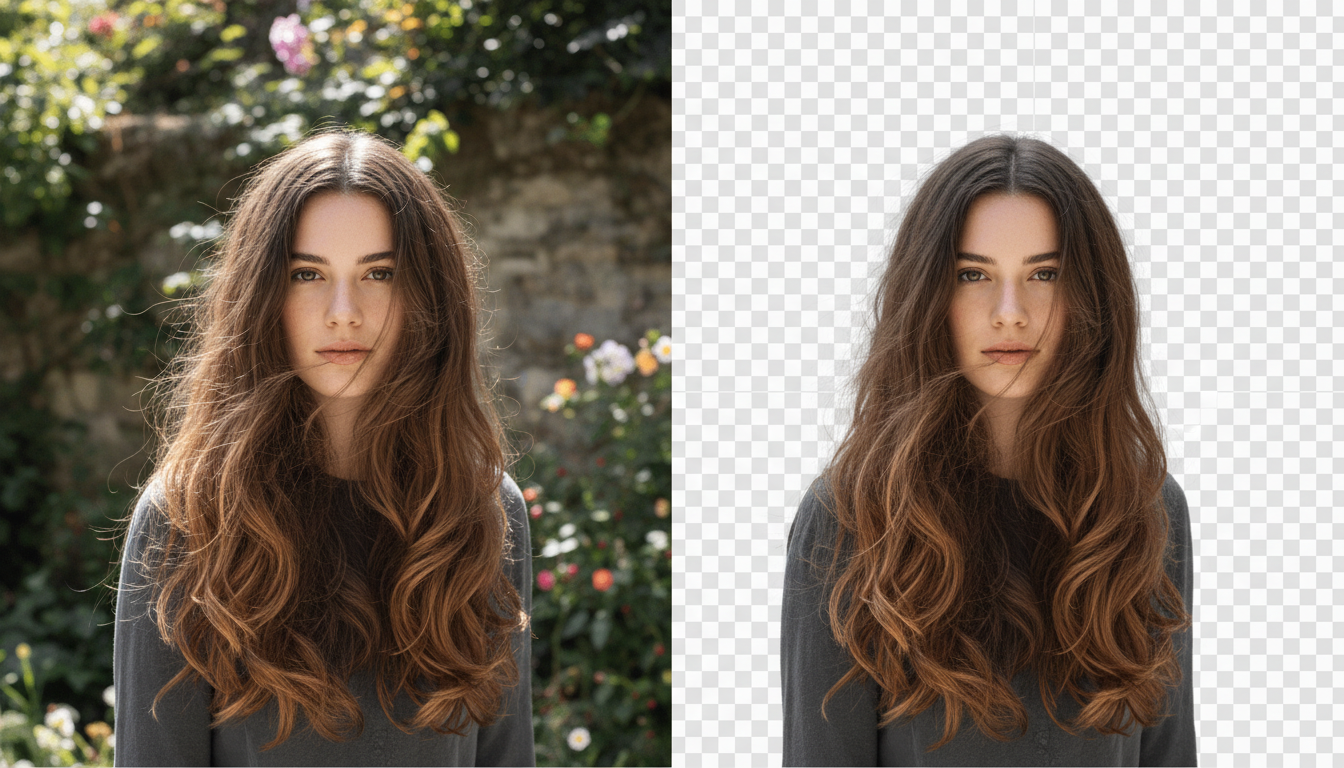
To remove an image background without losing fine hair strands, the extraction process needs to preserve semi-transparent pixels rather than relying on harsh, hard-edged cutouts. This process requires a high-contrast source image, an AI-driven edge-detection tool capable of parsing high-frequency details, and post-process color decontamination to eliminate edge halos. If the original background color bleeds into the hair strands, a simple cutout will leave a colored fringe, making clean compositing difficult.
The Hair-Edge Challenge: Why Standard Masks Fail
Isolating high-frequency details like fine hair is challenging because individual strands can easily blend into background pixels. Simple or low-resolution masking approaches often produce jagged, artificial edges or shave off the hair entirely. To preserve these details, modern edge-detection tools attempt to calculate varying levels of transparency for edge pixels, separating the fine strands from the background color.
This spatial still-image cutout process is distinct from temporal video masking, also known as rotoscoping. While video masking must maintain consistency across sequential frames to avoid distracting jitter, still-image extraction focuses entirely on sub-pixel edge accuracy. When preparing assets for downstream production, starting with a clean still portrait helps ensure that subsequent motion tools do not inherit edge artifacts.
Step-by-Step Workflow for Clean Hair Isolate
Achieving a pixel-perfect cutout requires a structured pipeline that prioritizes edge clarity before, during, and after processing.
Step 1: Source Image Evaluation
The quality of your final cutout depends heavily on the source image. Look for portraits with a high level of contrast between the subject's hair and the background. Avoid busy patterns directly behind the hair, and ensure there is minimal motion blur. If the hair is blonde, a dark background is ideal; for dark hair, a light background provides the best separation.
Step 2: Processing with Dedicated AI Tools
Rather than spending hours manually brushing edges in Photoshop, use a dedicated, prompt-free AI model designed for edge-detection, such as Higgsfield's AI Background Remover. These specialized tools automatically identify the subject, trace fine strands, and separate them from the background in a single click without altering the core subject.
Step 3: Reframing and Canvas Expansion
If your subject's hair is cropped by the edge of the frame, attempting to remove the background will result in an unnatural, flat edge. To fix this, consider using AI image extenders to expand the asset canvas first before running the background remover. This ensures the AI has a complete, uncropped subject to isolate.
The Hair-Edge Inspection Checklist: Diagnosing and Fixing Halos
Even advanced AI models can leave subtle color fringing (halos) where the old background color has bled into the semi-transparent hair strands. Use this systematic checklist to identify and repair these defects:
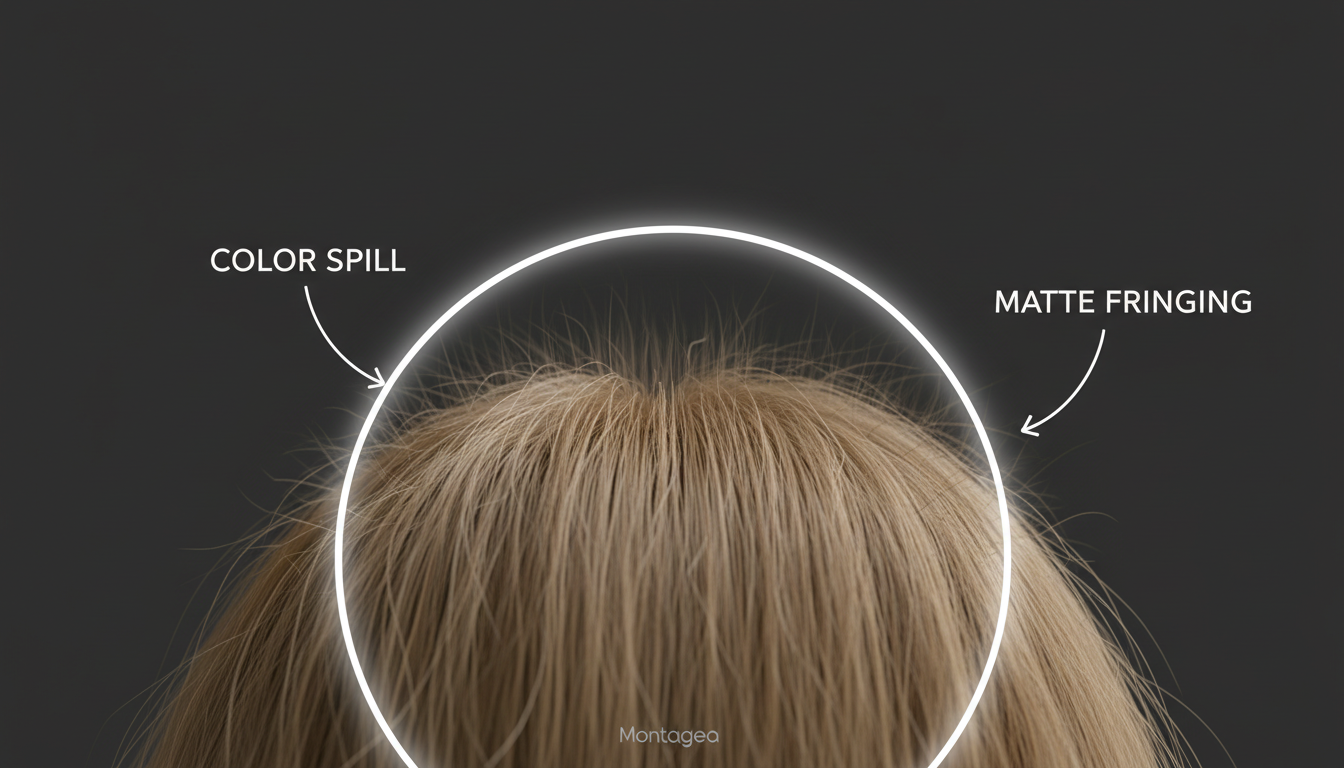
- The Dark/Light Background Test: Place your cutout over a solid black layer, then a solid white layer. A dark halo will appear against the white background, while a light halo will stand out against the black.
- Color Decontamination: If the subject was photographed against a green screen or a bright blue wall, those colors will reflect onto the hair. Use a color-replace brush or a clipping mask set to "Color" blend mode to paint over the fringe with the subject's natural hair color.
- Edge Choking vs. Feathering: Use the decision framework below to determine how to adjust transition pixels.
| Edge Condition | Recommended Action | Technical Goal |
|---|---|---|
| Soft, frizzy hair with heavy color bleed | Color Decontamination | Retain the fine strands but change their color to match the head. |
| Sharp, well-defined hair with a thin white halo | Edge Choking (Contracting) | Pull the mask boundary inward by 1-2 pixels to hide the fringe. |
| Blurry or out-of-focus hair edges | Subtle Feathering | Soften the edge transition to match the camera's natural depth of field. |
Exporting Alpha-Capable Assets for Video Production
To preserve the transparency of your newly isolated hair edges, you must export the asset in a format that supports an alpha channel. A 24-bit PNG or a lossless WebP format is essential; standard JPEGs do not support transparency and will flatten your subject back onto a solid white or black background.
These clean, alpha-capable cutouts are highly useful when building consistent creative pipelines. On platforms like Montagea, where creators use the AI creative agent Gigi to generate ads, short films, and social content, starting with a clean character asset helps isolate the subject before applying motion effects. If you are preparing a character for an image-to-video workflow, a clean cutout makes it easier for motion generators to animate the subject without warping adjacent background elements.
Once your cutout is clean and exported, you can integrate it into broader asset generation workflows. By writing precise AI image editing prompts to maintain consistency across your project, you can generate matching variations of your character. From there, you can easily apply Runway image-to-video motion prompts to bring your isolated character to life in a cinematic scene without worrying about background artifacts or jagged hair edges ruining the illusion.
Why does my cutout have a thin white outline, and how do I remove it?
A thin white outline occurs when the AI includes some of the original light background pixels in the semi-transparent transition zone. To fix this, you can "choke" or contract the mask by 1 to 2 pixels in an image editor, or use a color decontamination brush to paint over the white fringe with the natural hair color.
Can I use text prompts to force an AI background remover to preserve curly hair?
Dedicated background removers are typically prompt-free and rely on visual edge-detection models rather than text instructions. If you are using a general-purpose image generator, prompting for "high-contrast studio lighting" or "sharp focus on hair strands" before isolating the subject can give the edge-detection model better visual data to work with.
Is it better to remove the background before or after color grading the portrait?
It is best to remove the background first. Color grading the portrait while it is still on its original background can cause the background colors to bleed further into the hair edges, making clean separation much more difficult. Isolate the subject first, then apply color grading to match your new composition.