How to Fix Video Not Showing in an Online Video Editor
A black or missing video preview in an online editor can stall your production. Learn how to systematically diagnose upload delays, timeline track settings, browser performance bottlenecks, and codec incompatibilities to get your visual workspace back on track.
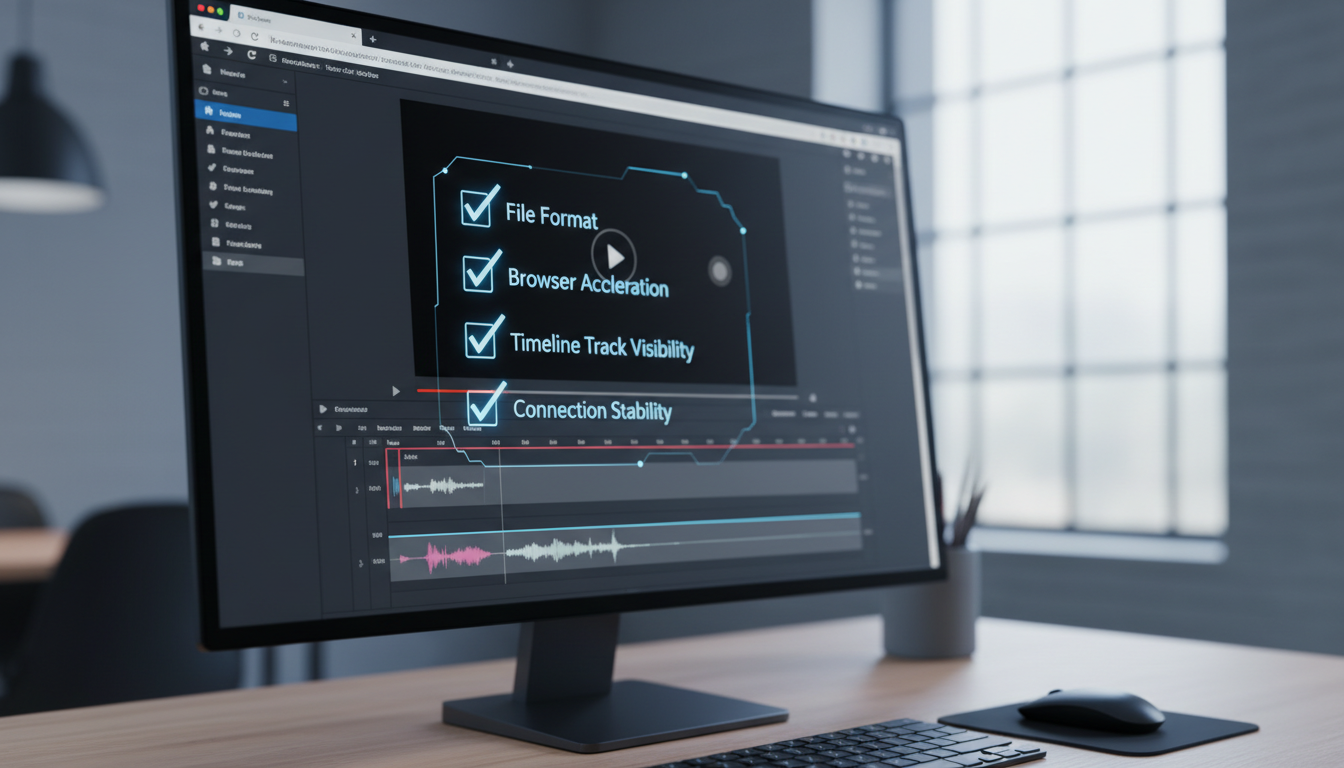
When a video clip fails to appear in an online video editor's preview pane, the issue is typically caused by incomplete server-side transcoding, timeline layering conflicts (such as hidden tracks or overlapping layers), local browser hardware acceleration bottlenecks, or unsupported video codecs like high-bitrate HEVC or Variable Frame Rate (VFR) files. Resolving this requires a systematic check starting from the server's upload status down to your local browser's rendering settings.
Step 1: Distinguish Upload Progress from Transcoding Status
A completed file upload does not mean the video is immediately ready for timeline playback. Cloud-based editors rely on a two-step ingestion process. First, the raw file is copied to the platform's cloud storage. Second, the server must transcode that file into lightweight, web-friendly proxy resolutions (such as 720p H.264) that your browser can decode in real time without lag.
If you attempt to drag a clip onto your timeline while it is still undergoing server-side processing, you will typically see a black screen, a persistent loading graphic, or a generic placeholder thumbnail. To verify if transcoding is complete, look for indicators near your media library, such as background rendering spinners, status percentages, or a 'Processing...' label. If these indicators are active, wait a few minutes before placing the clip on the timeline; attempting to force preview playback during active transcoding can halt the browser's media pipeline entirely.
Step 2: Audit Timeline Tracks and Playhead Position
If the file is fully processed but still fails to display, the problem often lies in how your timeline is arranged. Simple configuration mistakes can easily hide active video tracks from the preview engine.

- Verify Playhead Alignment: Ensure your playhead is directly over a valid video block. If the playhead is resting even a fraction of a second before or after the clip, or on an empty gap between cuts, the preview window will correctly display nothing but black.
- Check Track Visibility Toggles: Locate the eye icon or track mute button on the left-hand track headers. If a track has been accidentally hidden or muted, its visual output will be completely disabled.
- Inspect Layer Hierarchy: Online editors render tracks from top to bottom. If you have a solid color background, a heavy graphic overlay, or an empty adjustment layer on a track above your raw footage, it may block the video beneath it entirely. Drag your target clip to the topmost track to verify if another layer is obstructing it.
Step 3: Resolve Browser Performance and Hardware Acceleration Bottlenecks
Web-based editors use your local browser's engine to render video frames on the fly. This relies heavily on WebGL and hardware acceleration. If your browser settings or system memory are constrained, the video canvas may fail to render frames altogether.
To fix browser-specific performance issues, follow these diagnostic steps:
Enable Hardware Acceleration
Ensure your browser is handing off video decoding tasks to your dedicated or integrated GPU. In Google Chrome or Microsoft Edge, navigate to Settings, search for 'hardware acceleration', and toggle on 'Use graphics acceleration when available'. In Safari, this is managed automatically by macOS, but ensuring your operating system is updated keeps your WebGL drivers current.
Manage System Memory Limits
Web browsers restrict RAM usage per tab to maintain overall system stability. If you are working on a complex timeline with multiple high-resolution clips, the browser tab may silently exceed its memory ceiling, causing the video canvas to go blank or crash. Close unused browser tabs, shut down background applications, and reload your editor page to free up system memory.
Perform Browser Maintenance
Clear your site-specific cache to remove corrupted temporary playback files. Additionally, temporarily disable browser extensions—particularly aggressive ad blockers or script protectors—which frequently misidentify WebGL and canvas rendering scripts as tracking scripts and block them from running.
Step 4: Check Codec Compatibility and Container Formats
While desktop applications like Premiere Pro or DaVinci Resolve can handle heavy production formats like ProRes or high-bitrate HEVC natively, web browsers have strict limitations. Online editors require highly standardized delivery formats for stable in-browser decoding.
Standard web engines require the H.264 video codec and AAC audio codec wrapped in an MP4 or WebM container. If your source footage was shot on a high-end cinema camera or captured as a Variable Frame Rate (VFR) file on a mobile device, the browser's native decoder may fail to parse the frames, resulting in a blank screen while the audio plays normally.
To determine if your file format is causing the issue, consult the diagnostic table below:
| Symptom | Probable Cause | Actionable Fix |
|---|---|---|
| Audio plays, but preview is black | Unsupported video codec (e.g., ProRes, AV1, or high-bitrate HEVC) | Transcode the source file to standard H.264 MP4 using a tool like HandBrake. |
| Video freezes or desyncs from audio | Variable Frame Rate (VFR) from mobile or screen capture | Re-export the file with a Constant Frame Rate (CFR) at 23.976, 24, or 30 fps. |
| Infinite loading spinner on import | File exceeds platform's single-file upload limit or server timeout | Compress the file locally before uploading, or check your internet connection status. |
| Editor tab crashes on high-res files | Browser memory exhaustion from 4K or high-bitrate source files | Downscale source assets to 1080p proxies before uploading to the browser workspace. |
If you identify a codec or frame rate conflict, use a local transcoder like HandBrake or ffmpeg to convert your footage to a constant-frame-rate H.264 MP4 before uploading it back to your online workspace. This ensures seamless compatibility with the browser's standard rendering pipeline.
Optimizing Your Production Pipeline to Prevent Preview Failures
To avoid rendering errors and timeline lag entirely, restructure how you prepare and organize your creative assets. Rather than loading a single, multi-hour timeline into a browser tab—which inevitably exhausts system memory—break your projects down into smaller, highly structured scenes.
When designing tight, fast-paced projects, adopting a structured vertical video workflow can help minimize asset bloat and render lag by keeping timelines lightweight and optimized for quick previews. For instance, when planning rapid cuts or complex visual sequences, understanding how to plan and prompt AI jump transitions can help you isolate timing issues before they reach the timeline.
Using an AI creative agent like Montagea (Gigi) can help streamline the asset generation process. By describing your creative vision—whether it is an ad, a short film, or a music video—Gigi plans the steps, selects the optimal AI models, and delivers finished video, image, or music assets. This automated generation workflow bypasses the need to manually manage complex, unrendered timelines in a local browser, delivering clean, fully transcoded files that are ready for immediate playback. To ensure your source files and AI-generated renders consistently load without errors, establish a clear model testing protocol to verify that all assets match your target delivery specifications before they enter your editing pipeline.
Why does my video show up in the media library but turn black when dragged to the timeline?
This usually happens because the online editor has generated a static thumbnail image for the library, but the underlying video file is either still transcoding on the server or uses an unsupported codec (like ProRes or VFR) that the browser's timeline engine cannot decode in real time.
Can a VPN or slow internet connection cause my online editor preview to stop showing?
Yes. Online editors often stream preview files dynamically. A slow connection or an unstable VPN can cause packets to drop, resulting in a stalled playback engine, a frozen frame, or a black screen. Try pausing the preview to let the browser buffer, or temporarily disable your VPN to see if performance improves.
Does the resolution of my uploaded video (like 4K vs 1080p) affect whether the browser preview displays?
Absolutely. High-resolution files like 4K require significantly more browser memory and processing power to decode. If your local system is low on RAM or lacks hardware acceleration, the browser tab may run out of memory and stop rendering the video canvas, whereas a 1080p file will load and preview smoothly.