The AI Wardrobe Department: How to Maintain Exact Clothing Across Video Scenes
Tired of your AI character's jacket changing color between cuts? Discover a reliable, production-tested workflow to lock in exact clothing across multiple scenes and camera angles.
In traditional filmmaking, the script supervisor and the wardrobe department work in lockstep to ensure a character's buttons, collar style, and fabric textures remain identical from one shot to the next. In AI filmmaking, however, this responsibility falls entirely on the director's digital workflow. If you rely solely on text prompts, a character's leather jacket will morph, shift colors, or lose its pockets between a medium shot and a close-up, instantly breaking the audience's immersion.
To solve this, creators must move away from treating AI video generators as magic black boxes and instead treat them as virtual production pipelines. At Montagea, we look at AI wardrobe through the lens of asset management: establishing a structured "wardrobe asset" pipeline using high-fidelity reference images, IP-Adapters, and targeted post-production techniques to lock in clothing continuity across every single cut.
The Wardrobe Continuity Crisis in AI Filmmaking
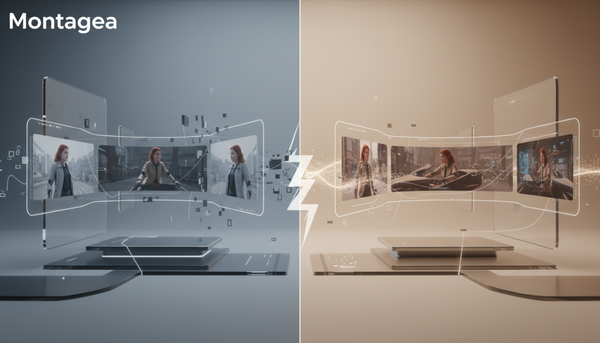
The core issue plaguing AI-generated video is "wardrobe drift"—the subtle, continuous alteration of colors, patterns, and fabric textures between different generation runs or camera angles. This happens because of a fundamental technical reality: AI diffusion models do not understand objects in three dimensions. They do not know what a "blue denim jacket with brass buttons" actually is; instead, they prioritize frame-by-frame pixel coherence and local probability distributions. They are matching visual noise to motion vectors, not maintaining a persistent 3D asset database.
When you prompt a character running down a street, the model does its best to render "denim jacket" based on its training data, but it has no memory of the specific zipper structure or stitch pattern from your previous shot. It recreates the garment from scratch every time. For hobbyists, this is a minor quirk; for professional narrative video production, it is a critical failure point. A mismatch in wardrobe ruins editorial continuity, making it impossible to cut between shots without drawing the viewer's eye to the technical error.
To build a narrative that holds up under professional scrutiny, we must shift our workflow from passive prompting to active asset management. By pre-defining and locking the wardrobe before a single frame of video is generated, you establish a "digital wardrobe department" that keeps your characters grounded in the reality of your story.
The Three-Tier Workflow for Wardrobe Control
Controlling AI wardrobe requires choosing the right tool for your scene's complexity. There is no single button to solve continuity, but rather a spectrum of workflows ranging from fast and flexible to highly controlled and precise.
| Workflow Method | Setup Time | Creative Flexibility | Wardrobe Consistency | Best Used For |
|---|---|---|---|---|
| Text-Only Prompting | Near Zero | High | Low (Severe Drift) | Rapid prototyping, wide establishing shots with distant characters. |
| Image-to-Video (I2V) Reference | Moderate | Medium-High | High (Stable Patterns) | Standard narrative scenes, dialogue sequences, medium shots. |
| Hybrid Post-Production | High | Low | Absolute (Pixel-Perfect) | Action sequences, complex patterns (plaid, stripes), extreme close-ups. |
For the vast majority of narrative productions, the Image-to-Video (I2V) Reference workflow represents the ideal sweet spot. It provides the model with a concrete visual anchor for fabric textures and clothing geometry while maintaining the flexibility needed to generate diverse character movements and camera angles.
Leveraging Image-to-Video (I2V) and Character Sheets
The foundation of a stable AI wardrobe is the multi-angle character sheet. Instead of asking your video generator to invent clothing on the fly, you feed it a pre-rendered, high-fidelity image of your character wearing the exact outfit from multiple angles.
To create a reusable wardrobe asset, use an image generator like Midjourney or Stable Diffusion. Your goal is to generate an orthographic reference sheet showing your character from the front, side, and back. Use flat, neutral lighting and a solid background to isolate the clothing. A prompt like "A character model sheet of a woman wearing a mustard-yellow utility jacket with brass zippers, front view, side profile view, back view, studio lighting, solid grey background" will yield a clean asset sheet.
Once you have this master asset, you can crop the specific angle you need and feed it into video generation engines like Runway Gen-2, Luma Dream Machine, or Kling. By using this image as your primary visual prompt (and setting the image weight high), you force the video engine to copy the exact pocket placement, zipper style, and fabric texture of your master asset, rather than guessing based on text alone.
Step-by-Step: Setting Up Your AI Wardrobe Reference Sheet
To implement this pipeline successfully, follow this production-tested, step-by-step setup:
Step 1: Generate the Master Outfit Image
Begin by generating a single, high-resolution image of your character's outfit. Avoid ambiguous language in your text prompt. Instead of prompting "a warm grey coat," use highly specific, descriptive terms like "a charcoal grey herringbone wool overcoat with wide lapels and dark marble buttons." The more specific the textile and construction details are in your prompt, the easier it is for both the image generator and the video generator to maintain those details.
Step 2: Apply IP-Adapters and Seed Locking
If you are using Stable Diffusion (via ComfyUI or Automatic1111), leverage IP-Adapters (Image Prompt Adapters). IP-Adapters allow you to feed your master wardrobe image directly into the model's attention layers, decoupling the clothing style from the character's pose. By locking your generation seed and setting the IP-Adapter weight between 0.6 and 0.8, you can generate new poses and angles while keeping the textile patterns, stitching, and color palette perfectly locked.
Step 3: Test the Asset Across Camera Scales
Before committing to a full scene render, test your wardrobe asset across different camera distances. A jacket that looks perfect in a medium shot might lose its distinctive fabric weave in an extreme close-up, or turn into a flat color block in a wide shot. For a deeper dive on managing these transitions seamlessly, read our comprehensive guide on how to scale your character assets from close-ups to wide shots without losing textile detail. This ensures your digital wardrobe remains visually convincing whether your character is ten feet or ten inches from the camera.
Advanced Techniques: Masking, Inpainting, and Hybrid Editing
Even with advanced I2V workflows, AI video generators can still experience minor drift during high-motion shots or complex camera pans. When the generator fails to maintain continuity, you must turn to hybrid post-production techniques to force consistency.
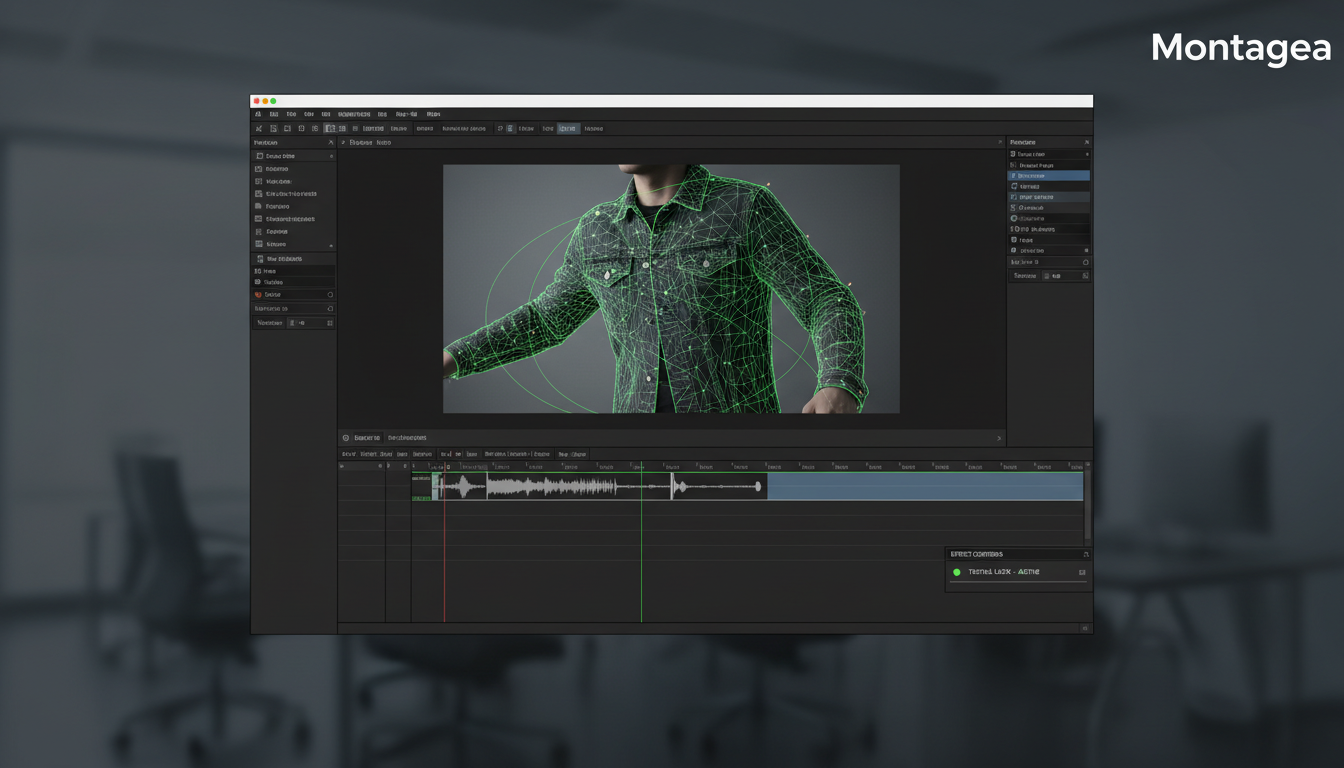
Under-the-Hood Consistency: Masking and Video-to-Video
If a generated video has perfect character movement but the wardrobe's pattern begins to swim or morph, you can isolate the clothing using masking tools. Import your video clip into software like DaVinci Resolve or After Effects, and use the Magic Mask or Roto Brush tool to isolate only the character's clothing.
Export this isolated mask and run it through a video-to-video (V2V) style transfer engine, using your original wardrobe sheet as the sole reference. By applying the style transfer strictly to the masked clothing layer and compositing it back over the original footage, you can lock down drifting patterns without altering the rest of your scene's lighting or character physics.
Traditional Tracking and Texture Replacement
For complex patterns like plaid, flannel, or fine pinstripes—which AI video models notoriously struggle to track through movement—a traditional VFX approach is often the most reliable solution. You can apply a 3D surface tracker (such as Mocha Pro) to the character's clothing in post-production. Once tracked, you can overlay a static, high-resolution texture of the fabric pattern onto the moving mesh, using blend modes to preserve the natural folds, shadows, and highlights of the generated video. This hybrid approach blends the speed of AI generation with the absolute control of classic visual effects.
The AI Wardrobe Continuity Checklist
Before hitting render and spending your valuable generation credits, run through this quick checklist to minimize wardrobe errors and ensure a seamless edit:
- Fabric Complexity Check: Have you avoided highly complex patterns like tight pinstripes, houndstooth, or intricate plaids? Solid colors, leather, denim, and coarse wools are significantly easier for AI video engines to track consistently.
- Lighting and Environment Alignment: Does your wardrobe reference image match the lighting environment of your target scene? A red jacket under cool, blue moonlight will look drastically different than the same jacket under a warm, golden sunset. Adjust the color temperature of your reference image to match the scene before generating.
- Resolution and Aspect Ratio Alignment: Ensure your wardrobe reference sheet matches the aspect ratio and resolution of your target video generation. Feeding a square (1:1) reference image into a widescreen (16:9) video generator can cause stretching, cropping, or unexpected garment distortion.
- Button and Fastener Simplification: Keep zippers, buttons, and buckles to a minimum in your initial designs. If your character must wear a highly detailed garment, plan to use post-production tracking to lock those specific hard assets in place.
How do I keep the same clothes in Midjourney to video?
To maintain clothing consistency from Midjourney to a video generator, create a clean, multi-angle character sheet in Midjourney with flat lighting and a neutral background. Crop the specific angle you need, and input that cropped image as the "Image Prompt" or "Image Reference" in your video generator (like Runway or Luma), setting the image weight to its maximum value to force the model to copy the clothing details.
Why does my AI character's outfit change color between scenes?
AI video generators do not have a persistent memory of physical assets. They generate frames based on local probability and lighting prompts. If one scene is set in a sunny park and the next is in a dark bar, the model will shift the outfit's colors to blend with the environment's lighting. To prevent this, use a consistent image reference for every shot and color-correct your reference image to match the scene's lighting before rendering.
What is the best AI video generator for clothing consistency?
Generators that support high-weight Image-to-Video (I2V) inputs, such as Runway Gen-2, Luma Dream Machine, and Kling, offer the best control over clothing consistency. For open-source workflows, Stable Diffusion combined with AnimateDiff and IP-Adapters provides the highest level of precise wardrobe and pattern control.
How do you use IP-Adapters to lock wardrobe in AI video?
In Stable Diffusion workflows (like ComfyUI), you load an IP-Adapter node and input your master wardrobe reference image. The IP-Adapter extracts the key visual features—such as fabric texture, colors, and clothing cuts—and injects them directly into the generation process. By adjusting the IP-Adapter weight (typically between 0.6 and 0.8), you can force the model to keep the clothing identical while allowing the character to perform different movements.